Android: Motion Assist against dizziness and Gemini that remembers objects — How to activate it

Yes: the latest Android release includes Motion Assist to reduce motion sickness and Gemini features to remember objects. This guide explains what each tool does and how to check if your phone can receive them (and activate them) step by step.
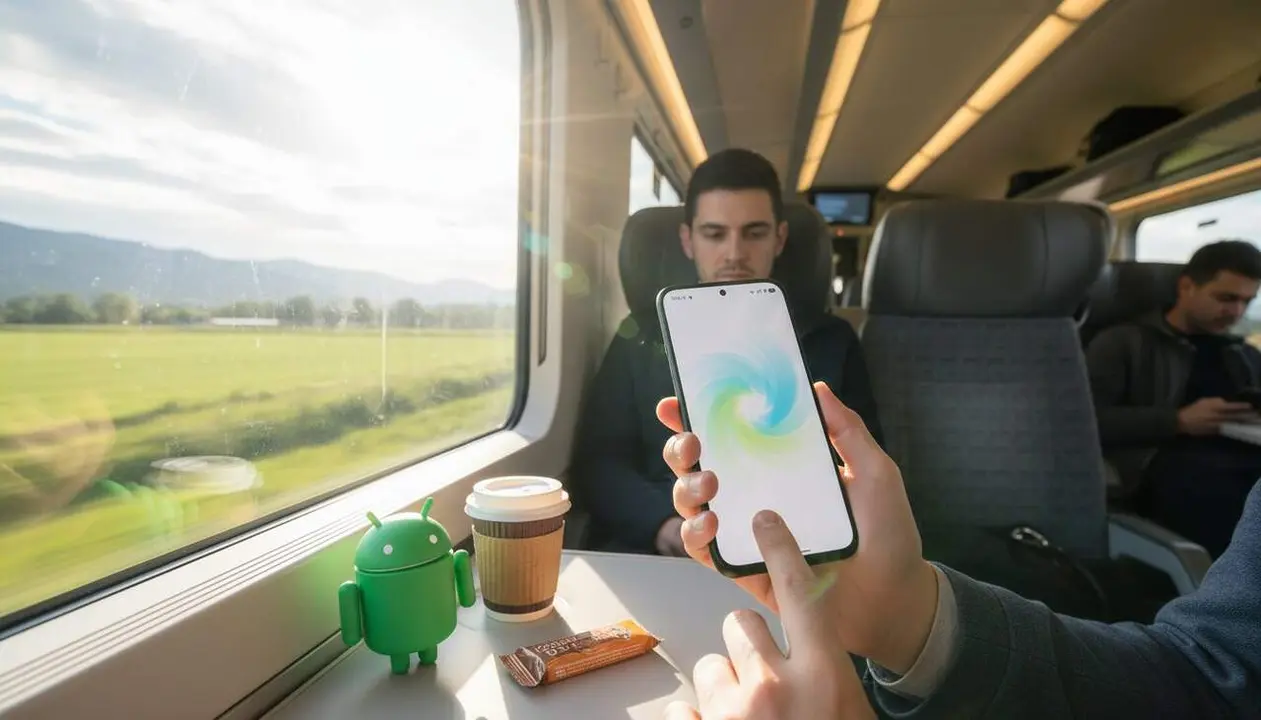
It starts with a micro-anecdote: you get in the car, open an app, and feel dizzy; Motion Assist aims to relieve this sensation with a visual overlay synchronized with the vehicle's movement. It’s not magic; it’s visual adjustment.
According to Xataka Móvil and the announcement published on Google’s official blog, the September rollout distributes these tools through app updates and the Google Play service; the deployment is staged and may take days to reach your device.
What the New Update Includes
Why Does This Matter in Your Daily Life?
It matters because it turns everyday problems — dizziness on trips and lost objects — into specific actions the phone can automate or remember. This reduces friction and wasted time.
Which Features Are Coming?
The main list, extracted from the source, includes Motion Assist (visual aid for motion sickness), integrated object location memory with Gemini and Find Hub, Guided Vision for environment description, and new features in Google Messages with note integration and chat customization.
How to Activate Motion Assist and Gemini
How to Activate Motion Assist?
Summary: activate Motion Assist from system settings or add it to your quick shortcuts to turn it on automatically during trips.
Detailed steps (verify you have compatibility with Android 17):
- Open Settings on your phone.
- Go to Accessibility or System > Experimental features (if it appears).
- Activate Motion Assist and, if you want, check Automatically activate so it turns on during the trip.
- To add to shortcuts: open the status panel, tap edit shortcuts, and drag Motion Assist to the quick shortcuts bar.
How to Make Gemini Remember Objects?
Summary: manually tell Gemini where you left an object; the location will be saved for you to check later.
How to do it:
- Open the Assistant / Gemini app or the Find Hub interface if your country and device support it.
- Say or type: “I left the keys on the kitchen table” and confirm the location note.
- Repeat for other objects; consult these entries from Gemini or Assistant search when needed.
- Remember: this tool works via internal note storage and does not replace a physical tracker (tag).
How to Check and Verify
How Do I Know If My Version Is Compatible?
Short answer: check the Android version on your device and Google Play updates; Motion Assist requires Android 17 according to the source, other features arrive on Android 16 and Android 9.
How to verify step by step:
- Open Settings > System > About phone and look at the Android version.
- Open Google Play, tap your icon, and select Manage apps and devices > Updates to get the latest features.
- If you don't see the feature, check the Google Messages and Assistant apps for specific updates.
What Signs Confirm It Is Working?
Short answer: observing the moving overlay during a trip, saved entries in Gemini showing locations, and voice reading in Guided Vision.
Verification checklist:
- You have Android 17 and see the Motion Assist option in Accessibility (yes → affected).
- You have Android 16 and the assistant accepts remembering object locations (yes → affected).
- You have Android 9 or higher and Guided Vision appears in Camera/Assistant (yes → affected).
- No options found → check Google Play and involved apps for updates.
| Platform / Version | Affected | Fix available |
|---|---|---|
| Android 17 | Yes (Motion Assist) | System / feature update |
| Android 16 | Yes (object memory with Gemini) | Assistant / Find Hub update |
| Android 9 | Yes (Guided Vision) | Assistant update |
What to Do If the Features Don’t Arrive?
Short answer: check system and Google Play updates, enable automatic downloads, and restart the device.
If after this you still don’t have the features:
- Force sync Google Play.
- Update Google Messages and Assistant from Google Play.
- Restart the phone and check Accessibility shortcuts again.
Additional simple checks you can do: verify app permissions (Settings > Apps > Permissions), confirm device language/region, and ensure a stable internet connection to download features.
The reality is these tools improve daily use: Motion Assist reduces the visual mismatch that causes motion sickness, and Gemini acts as extra memory for objects. In practice, this means fewer interruptions and less searching for lost items (and yes, it saves time).
Prevention and maintenance tips: keep system and apps updated, enable two-factor authentication on your Google account, review access permissions for location and camera, and make periodic backups. If you notice strange signs or data loss, consult an authorized technical service or Google support.
The reality is following these steps will save you frustrations: check updates, enable features, and review permissions so Motion Assist and Gemini work properly and privately.
Frequently Asked Questions
- How do I know if Motion Assist is available on my phone?
- Check the Android version at Settings > System > About phone. Motion Assist requires Android 17 according to the source.
- Can Gemini remember any object without a tag?
- Yes, Gemini can store notes on where you left an object for you to consult later; it does not replace a physical tracker.
- How long does it take for the update to reach my device?
- The rollout is staged and may take days; check for updates in Google Play and the involved apps.