3 seconds with the 0: LG's trick to assign shortcuts to your TV
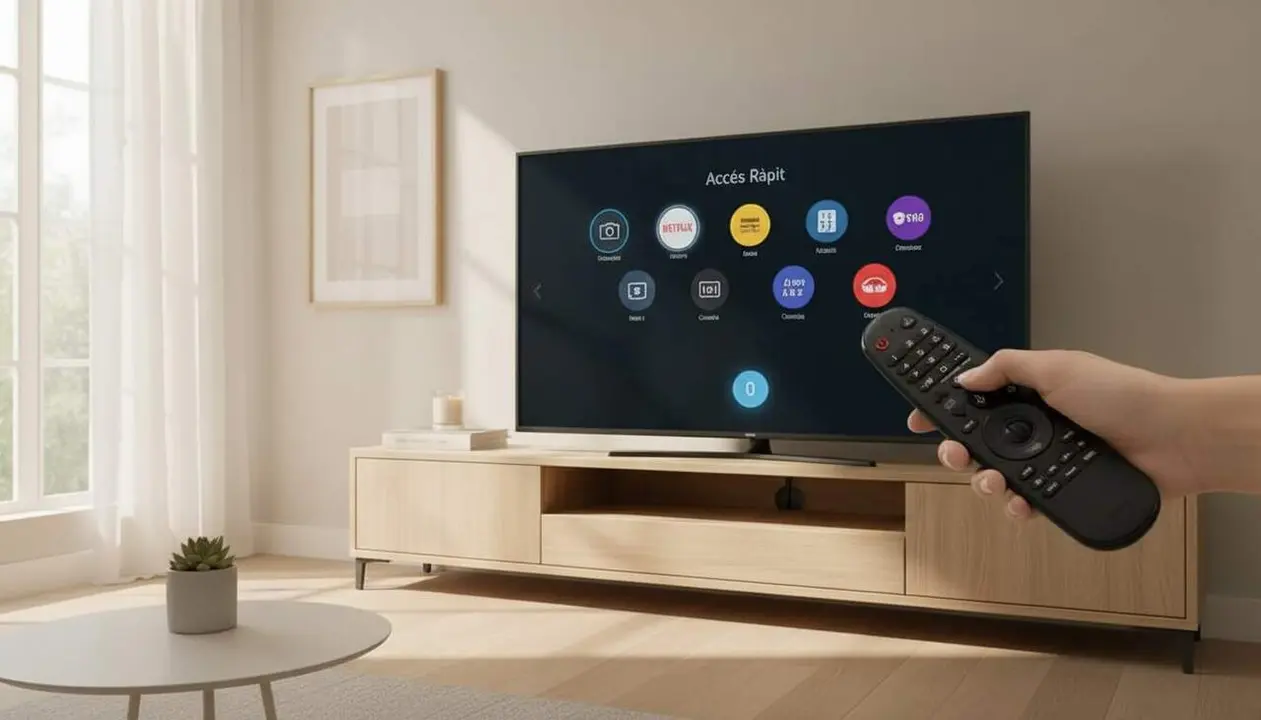

Pressing 0 for three seconds opens the webOS Quick Access panel and allows you to assign apps or HDMI inputs to numbers 1–8 on the Magic Remote. According to the official documentation from LG Electronics, this action reveals an interface so you can view and manage all numeric shortcuts at a glance.
Imagine: you have the console on HDMI 2, Netflix on 3, and YouTube on 4. With Quick Access you see it, change it, and reorder it without opening each app. It’s practical, fast, and designed to reduce repetitive steps every day. Simple and effective.
How it works and why it matters
Why does this matter to the reader? Because it saves time in daily use and reduces friction when accessing services and devices. If you have many apps or HDMI inputs, organizing shortcuts improves the viewing experience and facilitates sharing the TV.
What exactly does the Quick Access panel do?
It opens a centralized manager where the assignments for numbers 1 to 8 appear; number 9 is reserved for LG support and cannot be modified.
How does LG describe it?
The official documentation states that Quick Access shows, edits, and deletes numeric shortcuts, and allows linking streaming apps, tuned channels, or physical inputs like HDMI.
When and how to use this shortcut
Why is it important to know now? Because small organizational changes give you back minutes each day and reduce frustration when you get home. Also, if you change devices or subscriptions, you can quickly reconfigure it without navigating internal menus.
How to assign a shortcut in a few steps?
Follow these simple steps to assign or open shortcuts:
- Press the 0 button for three seconds to open Quick Access.
- Open the app or HDMI input you want to assign.
- While inside the app or input, press and hold the desired number (1–8) for three seconds to link it.
- Afterward, a short press (about one second) of the number immediately opens the assigned content.
When is it advisable to reconfigure shortcuts?
Reconfigure when you change a console, modify subscriptions, or someone else needs different access. It’s also useful before family gatherings or when preparing the TV for people with less technological skill. Practical, especially if you share the screen.
Compatibility and Other Magic Remote Shortcuts
Why is knowing compatibility relevant? To avoid wasting time: not all brands offer the same system or numeric assignments. Knowing this lets you look for alternatives (apps or settings) if you don’t have a compatible LG model.
Does it work on other brands?
Not natively. According to the source summary, the function to assign numbers with 0 is exclusive to LG webOS with Magic Remote. Other platforms have different mechanisms or require third-party apps.
What’s the difference with Samsung, Android TV, and Hisense?
The source indicates: Samsung (Tizen) usually rearranges icons from the Smart Hub; Android TV/Google TV (Sony, Philips, TCL, Xiaomi) do not offer native numeric mapping and need apps like Button Mapper; Hisense (VIDAA OS) has direct access buttons but they are not natively reassignable.
To visualize this comparison:
| Platform / Version | Added | Assignable with 0 |
|---|---|---|
| LG webOS | Yes | Yes (Quick Access) |
| Samsung (Tizen) | Smart Hub bar | No (icon rearrangement) |
| Android TV / Google TV | Third-party apps | Not native |
| Hisense (VIDAA OS) | Direct access buttons | Not natively reassignable |
Other useful Magic Remote shortcuts
The source describes long presses of about three seconds on specific icons to quickly access advanced functions:
- Gear icon: opens Advanced Settings.
- Plug icon: accesses the Home Dashboard to manage HDMI and IoT devices.
- Mute: expands Accessibility and Diagnostics.
- Home: shows recent apps to close or switch.
- Back + Home simultaneously: unpairs or pairs the Magic Remote.
- Microphone: hold for voice recognition and process the command on release.
How to verify if your TV is compatible?
Follow the checklist to know if you have the function available:
- Your TV comes with a physical Magic Remote with numeric buttons.
- You see a block named Quick Access in the main menu when you press 0 long.
- Numbers 1–8 appear with assignments and you can edit them.
- Number 9 is reserved for LG support (not editable).
If any of these statements are false, your model likely does not implement this function and an alternative solution or firmware update (if LG offers it) is needed.
Quick guide: troubleshooting and verification
Why does this guide help you today? Because it provides concrete and verifiable steps—not assumptions—to activate, assign, and use numeric shortcuts. This way you save time and know if your device needs a different solution.
Steps for basic troubleshooting
If 0 does not open Quick Access:
- Make sure the remote is a Magic Remote with numeric keypad.
- Restart the TV and try again.
- Update the system if LG offers an update for your model.
- Consult the official documentation from LG Electronics if the function remains absent.
How to confirm the shortcut works?
Try assigning a new app (for example, open Spotify and hold 5); then press 5 briefly to see if it opens. If it works, the setup is correct.
Try it before organizing everything: it’s the best way to avoid headaches.
Remember: this feature speeds up use and simplifies access to frequent content. Keep assignments updated if you change devices or subscriptions and periodically check the Home Dashboard to verify HDMI connections and peripherals.
The reality is that a small gesture—pressing 0 for three seconds—can change how you use the TV: fewer steps, less searching, more content. Make sure your model has webOS and a Magic Remote with numeric keypad; if not, look for third-party apps or manufacturer alternatives.
Frequently Asked Questions
- How do I know if my remote is a Magic Remote?
- The Magic Remote usually has a mouse-type pointer and numeric buttons. If the remote has a microphone and the option to move a cursor on the screen, it’s probably a Magic Remote.
- Can I assign an HDMI input to any number?
- Yes: inside the active input (for example, HDMI 2) hold the desired number for three seconds to link it.
- What if 0 doesn’t respond?
- Try restarting the TV and checking for system updates; if it persists, consult the documentation of LG Electronics or technical support.