The surprising trick of the router: what holding down the power button does and when to do it
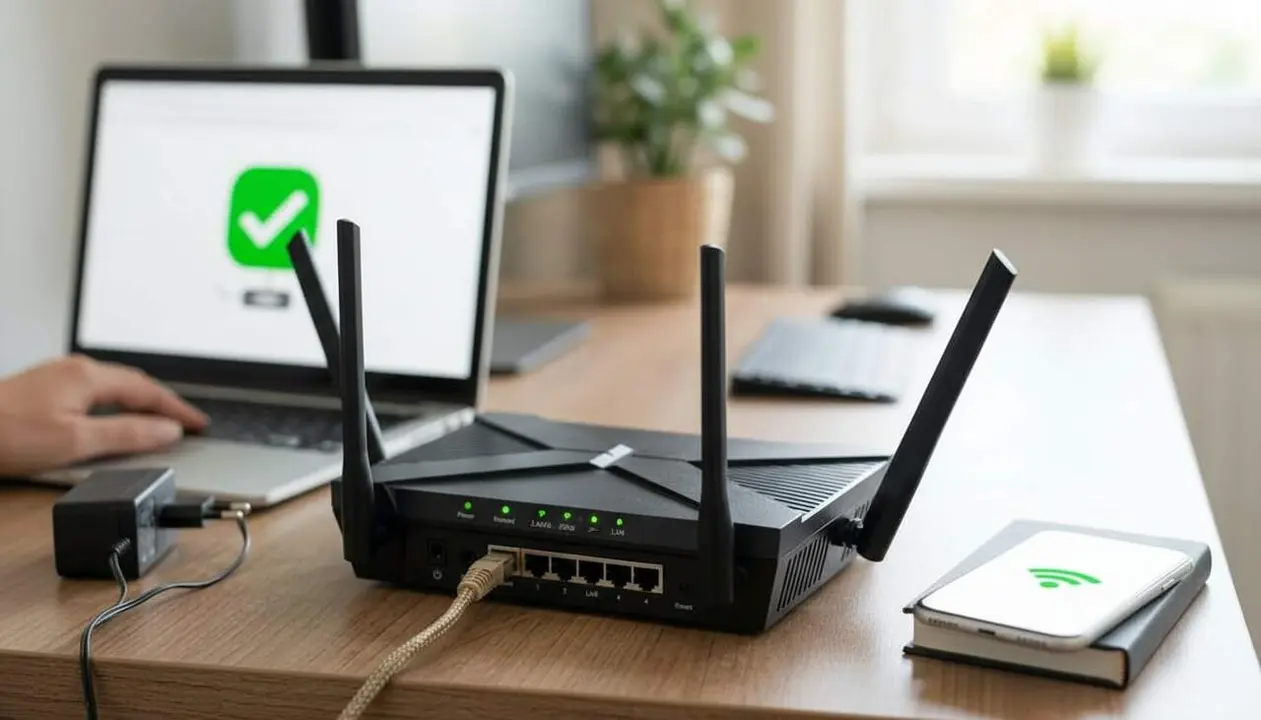

Holding down the router’s power button restarts the device and can restore the Wi‑Fi connection during occasional failures without needing complex interventions. This action is useful when the network stops responding and connected devices lose internet access.
We explain it with practical examples and simple checks to know if it’s worth doing it right now (and what to do if it doesn’t work).
Source: supplied content (updated August 30, 2026). The following text is based exclusively on this information and does not add technical data not presented in the source.
What it is and why it matters
Why is this of interest to the reader? Because a simple restart is usually the fastest solution when the connection drops, without having to call a technician or the provider.
What exactly does the restart do?
Short answer: it restarts the firmware and clears temporary operational errors.
When you hold down the power button for a few seconds, the device’s logical power is cut off, and a clean boot starts. This can resolve process locks, saturated internal memory, or failures in services that manage Wi‑Fi and packet routing.
Why does this specifically matter to my network?
Short answer: because most home incidents are temporary errors that clear up after a restart.
If you have devices that suddenly lose connection, high latencies, or blinking status lights, restarting the router is a quick first step. It is not an absolute guarantee, but it is a minimal effort test before moving on to more complex diagnostics.
When is it advisable and what are its limits
Why does knowing the right moment matter? To avoid useless steps and detect when a different intervention is needed, such as checking the location or contacting the provider.
When should the button be pressed?
Short answer: when the network stops providing signal and devices have no internet access.
If the router stops offering Wi‑Fi or the connection doesn’t respond after basic attempts (reconnecting a device, checking lights), holding down the power button is a quick action. If the source indicates "a few seconds," follow this guidance and avoid handling the device if you don’t know the exact operation of your model.
What are the limits of this method?
Short answer: it does not solve infrastructure or provider problems; it may be insufficient if there is hardware failure.
If after restarting the signal doesn’t return, repeating the same action does not guarantee a solution. In these cases, the problem may be physical, related to service billing, or a configuration issue that requires deeper review. The router’s location must also be considered, as it can affect signal quality inside the home.
How to do it and how to verify success
Why is it useful to follow clear steps? Because knowing what to do and how to verify avoids errors and saves time.
How to perform the restart (step by step)?
Short answer: press the button, wait, and check the lights and device connections.
- Check the status: observe the router lights and see if devices indicate "no connection."
- Hold down the power button for a few seconds until the device turns off (the source mentions "a few seconds").
- If the router does not have a clear power button, unplug the power and wait a few minutes before plugging it back in.
- Once restarted, verify that the lights indicate connectivity and that your devices regain access.
- If it doesn’t work, avoid repeating without further action: try a longer unplug or contact technical support.
How to know if it worked?
Short answer: the return of green lights and internet access on devices confirms success.
- Yes indicators: stable Wi‑Fi light or internet light in green.
- Connected devices: mobile or computer load pages and apps work.
- Not affected: if the internet light remains off or the provider shows an outage, the problem is likely external.
If the quick solution doesn’t resolve it, it’s best not to insist mechanically: the source recommends checking other causes.
Closing block: holding down the power button is a useful and immediate measure against temporary failures, but it does not represent the final solution for persistent problems. Check the indicators, try a controlled unplug, and consider contacting the provider or a technician if the connection is not restored. These basic actions reduce downtime and help determine if deeper intervention is needed.
Frequently Asked Questions
- How long should I hold down the button?
- The source mentions "a few seconds"; it does not specify an exact duration. If there are no manufacturer instructions, hold it until the device turns off or follow your model’s manual.
- Can the router configuration be lost with this restart?
- A restart using the power button normally does not lose the configuration; this happens with a factory reset, which is different and often requires a button marked "Reset."
- What if I don’t have a visible power button?
- Unplug the router from the power outlet, wait a few minutes, and plug it back in. This alternative is equivalent to physically turning the device off and on.