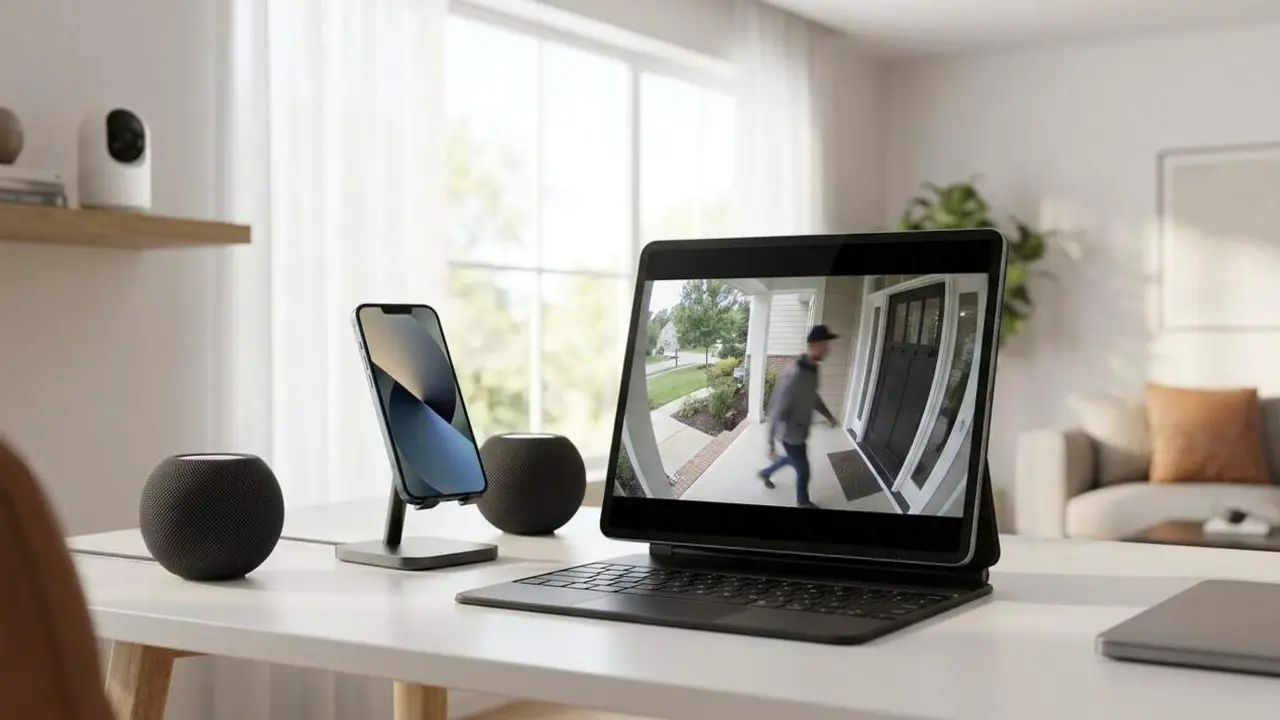
Why does the green dot appear on your mobile screen?
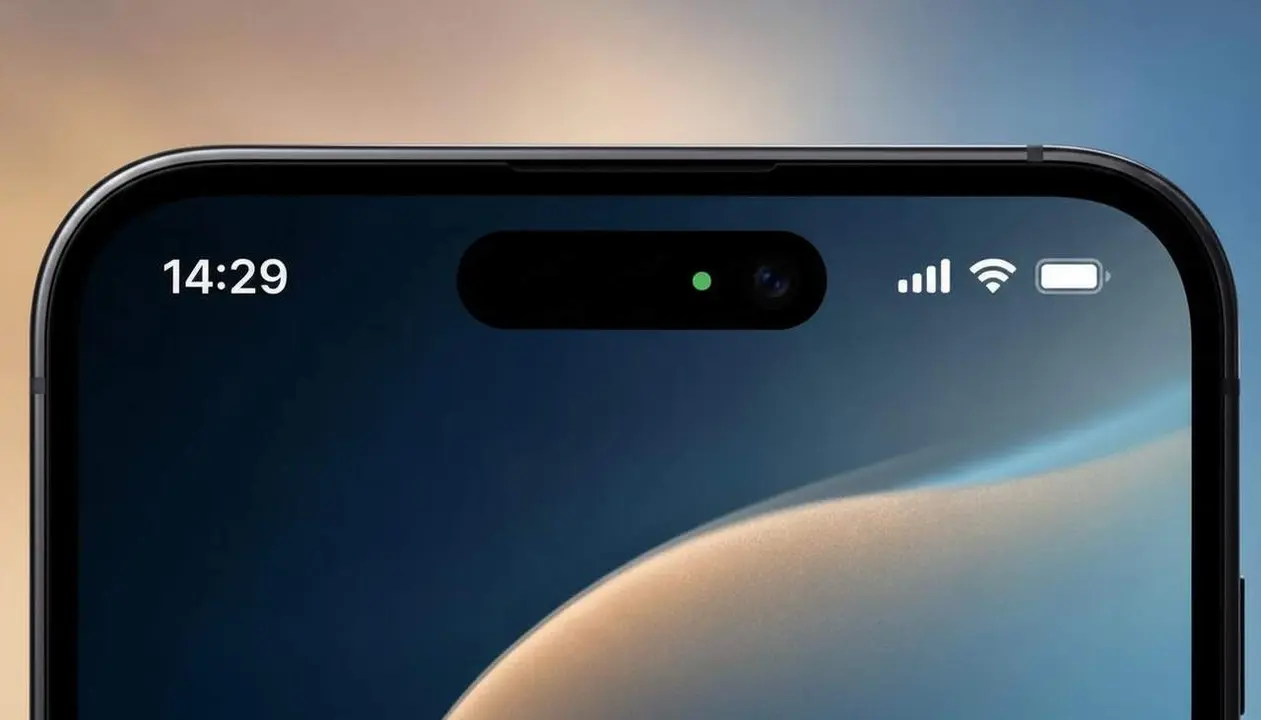

The green dot you see on your mobile screen indicates when an app is accessing the camera or microphone in real time. This feature lets you control that you are not being listened to or recorded without your knowledge.
Many users do not realize that this small indicator is key to protecting their privacy and preventing malicious uses. Understanding what it means is the first step to maintaining control of your device.
What is the green dot and why does it matter?
What is the function of the green dot on the screen?
The green dot is a visual signal that alerts you that the mobile’s camera or microphone are in use at that moment. It helps prevent apps from accessing these components without explicit permission or being used in the background without your knowledge.
Why is it relevant to the user?
This indicator protects your privacy, especially when the device is locked or you are performing other tasks. If the green dot lights up without you activating the camera or microphone, it is a warning that some app may be abusing permissions or that malware is active.
How does the green dot work on your mobile?
When exactly does the green dot appear?
The green dot appears when an app uses the camera to take photos, videos, or video calls, or when it activates the microphone to record audio or send voice messages. It also shows if the mobile detects these functions being activated in the background without your direct action.
How to identify which app is using the camera or microphone?
If you swipe the notification panel while the green dot is on, the system will show the name of the app accessing the sensor. This allows you to check which apps have permission and prevent possible unauthorized access.
What to do if the green dot appears without reason?
How to detect possible abuse of permissions?
If you see the green dot when you are not using the camera or microphone, it is likely that an app is improperly using these permissions or that there is malware. You should quickly review the permissions in the mobile settings and block those you do not consider necessary.
What measures can you take to protect your privacy?
- Regularly review camera and microphone permissions on apps.
- Configure permissions so they only activate while the app is visibly in use.
- Uninstall suspicious or unreliable apps.
- Keep the operating system updated to avoid vulnerabilities.
| Indicator | Meaning | Operating System |
|---|---|---|
| Green dot | Use of camera or microphone (generally camera) | iOS 14 and later, Android 12 and later |
| Orange dot | Microphone use only | iOS 14 and later, Android 12 and later |