Motorola Drive MA2: the simple way to have Android Auto wireless in your car
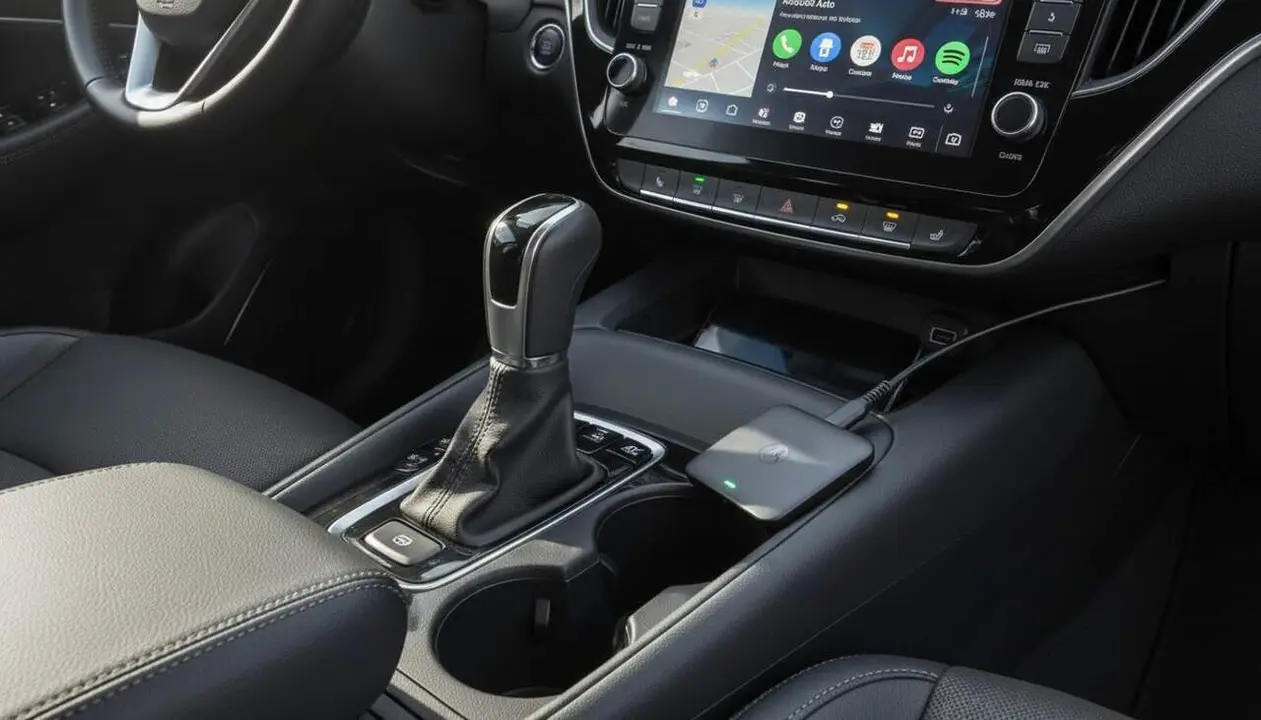

Yes: the Motorola Drive MA2 allows you to use Android Auto wirelessly in cars with Android Auto via USB. Source: Xataka. In short: it is a small USB adapter that bridges the phone and the car console, removes the cable, and works with phones running Android 11 or higher.
The Drive MA2 promises reliable connection and low latency, and the difference with other adapters is that it has Google's seal of approval. This introduction explains what you get, who benefits from it, and how to activate it, before going into the technical step-by-step.
What it is and why it matters to you
Why should you care? Because it simplifies an action you do hundreds of times: getting into the car and connecting your phone. If you drive daily, share a vehicle, or have fragile USB ports, this adapter reduces wear and friction.
How exactly does it work?
Short answer: it pairs the phone via Bluetooth and transmits Android Auto over 5 GHz Wi‑Fi.
The device plugs into the car’s USB port and establishes a Bluetooth connection to manage the link; then it uses a 5 GHz Wi‑Fi network to transmit the Android Auto interface. This reduces latency and improves fluidity compared to uncertified models.
Which users benefit the most?
Drivers with cars that have Android Auto via USB but not wireless by default; people who share a vehicle; and those who want to avoid constantly handling the cable. It’s also useful if your USB port is already worn out (fewer constant plugs).
How to activate it step by step
Here I explain the practical procedure I followed and recommend: it is straightforward and requires no additional apps.
What steps to follow for the first connection?
Short answer: connect, press the M button, pair via Bluetooth, and accept the Wi‑Fi connection on the phone.
Clear step: connect the MA2 to the car’s USB port, hold the central button until the LED turns blue, open the phone’s Bluetooth and search for the device which will appear as Android‑Auto‑XXXX. Once paired, the MA2 establishes the 5 GHz Wi‑Fi network to transmit Android Auto.
Recommended settings on the phone
To minimize issues, check these options on your Android: verify location and microphone permissions for Android Auto and avoid power saving that could cut the connection.
- Open Settings > Connections > Bluetooth and make sure the device is paired.
- Open Settings > Apps > Android Auto and review permissions (Location, Microphone) if necessary.
- If your phone has power saving options, disable them for Android Auto or for the shared device.
- When Wi‑Fi must be used, accept the network offered by the MA2; it is the main transmission method.
Checks and user experience
To know if the adapter works properly or if your car is compatible, do these quick checks. Here are clear signs indicating the connection status.
What tests to do to confirm everything is working?
Short answer: check the MA2 LED, the appearance of Android Auto on the screen, and test an app like Google Maps.
During my tests the differentiator was latency: audio playback and map response were almost like with a cable; the only noticeable difference is the initial start time (about 25–30 seconds in my 2019 Corolla).
Checklist: signs you are affected or not
- Your car has Android Auto only via USB → affected (you need an adapter to make it wireless).
- The phone is Android 11 or higher → compatible with the MA2.
- Android Auto does not start automatically → possible delay with wireless adapters (normal).
- The USB port is damaged or you want fewer cables → direct benefit from using an adapter).
| Platform / Version | Affected | Available solution |
|---|---|---|
| Vehicles with Android Auto via USB | Yes | Motorola Drive MA2 |
| Vehicles without Android Auto | No | None (does not add Android Auto) |
| Phones with Android 11 or higher | Yes (compatible) | Connect with MA2 |
Brief note: the MA2 does not add CarPlay compatibility nor convert a vehicle without Android Auto into one with compatibility; it is a bridge to make it wireless when USB functionality already exists.
In my experience, the connection is stable, there is no perceptible phone heating, and the device remains unnoticed once placed. The only drawback is the start latency: if you want absolute immediacy, the cable still wins. For longer trips or daily comfort, the MA2 is a very practical solution.
Final maintenance and prevention tips: keep the Android Auto firmware updated, avoid damaged cables, use the included adhesive pad to prevent movement, and try other USB ports if there are problems. If connection repeatedly fails, check the phone’s Bluetooth and try restarting the MA2 device (power off/on with the physical button).
When to seek professional help: if the car screen doesn’t detect any device via USB, or if the port is burnt, consult an electronic workshop; hardware issues are not solved with adapters.
The reality is that the Motorola Drive MA2 simplifies a daily action: fewer cables, less wear, and an Android Auto experience very close to that of the cable. If you have a car with Android Auto via USB and a phone with Android 11+, this adapter can transform your driving experience and save you hassle. Motorola Drive MA2, Android Auto, Android 11+: these are the key words you should remember; if they match your situation, the adapter is a very worthwhile option.
Frequently Asked Questions
- Does the Motorola Drive MA2 work with all cars?
- It works with cars that already have Android Auto via USB; it does not add Android Auto to vehicles that don’t have it.
- What phone do I need?
- You need a phone with Android 11 or higher to guarantee full compatibility with the MA2.
- Can I have two phones connected at the same time?
- Yes: the MA2 has multipoint functionality and allows pairing two phones to switch between them easily.