How to install and follow routes with Garmin: definitive guide for maps and GPX
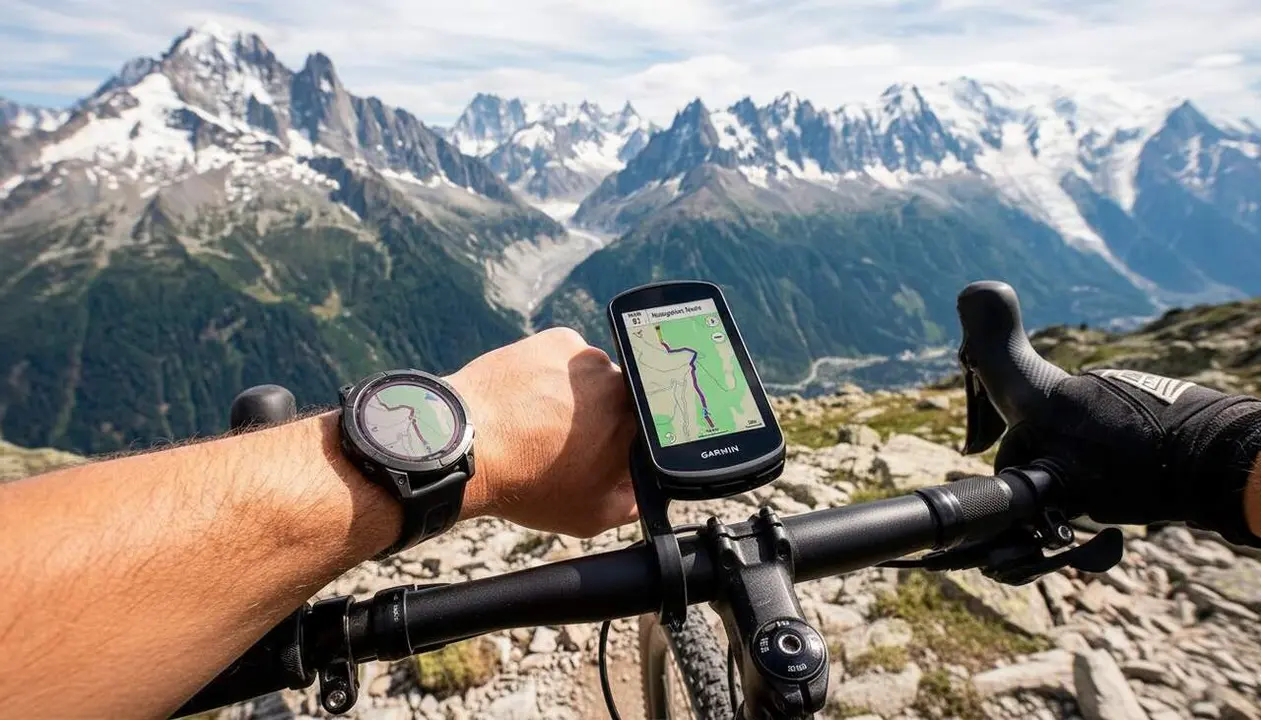

Updating maps and following routes on your Garmin is easier than you think. You just need a computer, Garmin Express, and Garmin Connect to have everything ready. Also, if you want to explore routes created by others or design your own, we explain how to do it without complications.
Imagine you have the perfect outing planned but don’t know how to transfer the route to your device. This guide helps you install maps and navigate routes, whether you’re using a Garmin watch or a bike computer.
How to install and update maps with Garmin Express
Why is it important to keep your maps updated? Because having the most recent information prevents getting lost and problems during your outings. Garmin Express is the official and safe way to do it.
What do you need to get started?
First, download and install Garmin Express on your computer. Then, connect your Garmin watch or bike computer with a USB cable. The program will automatically recognize the device.
How is the update performed?
If updates are available, Garmin Express will show them and you’ll just need to follow the instructions to download and install the maps. The process usually takes between 20 and 30 minutes, depending on your connection and the file size.
How to Create and import routes to Follow on your Garmin
Creating or importing routes is key if you want to follow specific courses, whether your own or from other users. This feature makes a big difference for athletes and adventurers.
How to Create a route in Garmin Connect?
Open Garmin Connect and go to “More” > “Training & Planning” > “Courses” > “Create course.” You’ll just have to select the points on the map to configure a custom route, whether for running, cycling, or walking.
How to import a GPX file?
If you have a GPX file from Wikiloc, Strava, or other platforms, save it to your phone. Open Garmin Connect, import the file, name it, and save the route. Then just send it to your Garmin device to sync it.
How to start Following a route with your Garmin device
Following a synced route is essential to avoid getting lost and enjoy your activity to the fullest. The process is intuitive but varies depending on the type of device.
How is it done on a Garmin Watch?
Start an activity, select “Navigate,” then “Saved,” choose the route, and select “Do course.” This way you’ll start receiving directions to follow the route.
And on a Garmin Bike Computer?
From the main screen, tap the three lines > “Navigation” > “Courses” > select the route and tap “Go.” The device will load the route and guide you throughout the activity.
| Step | Garmin Watch | Garmin Bike Computer |
|---|---|---|
| Start route | Activity > Navigate > Saved > Do course | Main screen > Three lines > Navigation > Courses > Go |
| Sync route | Garmin Connect > Send to device | Same as watch |
You must check that your device is compatible with route navigation and that it has integrated maps to make the most of it offline.
Updating maps and following specifically designed or imported routes can transform your sports experience. Now that you know how to do it, all that’s left is to go out and enjoy your Garmin at 100%.