Why Install Kodi on Your Amazon Fire Stick Before Going on Vacation
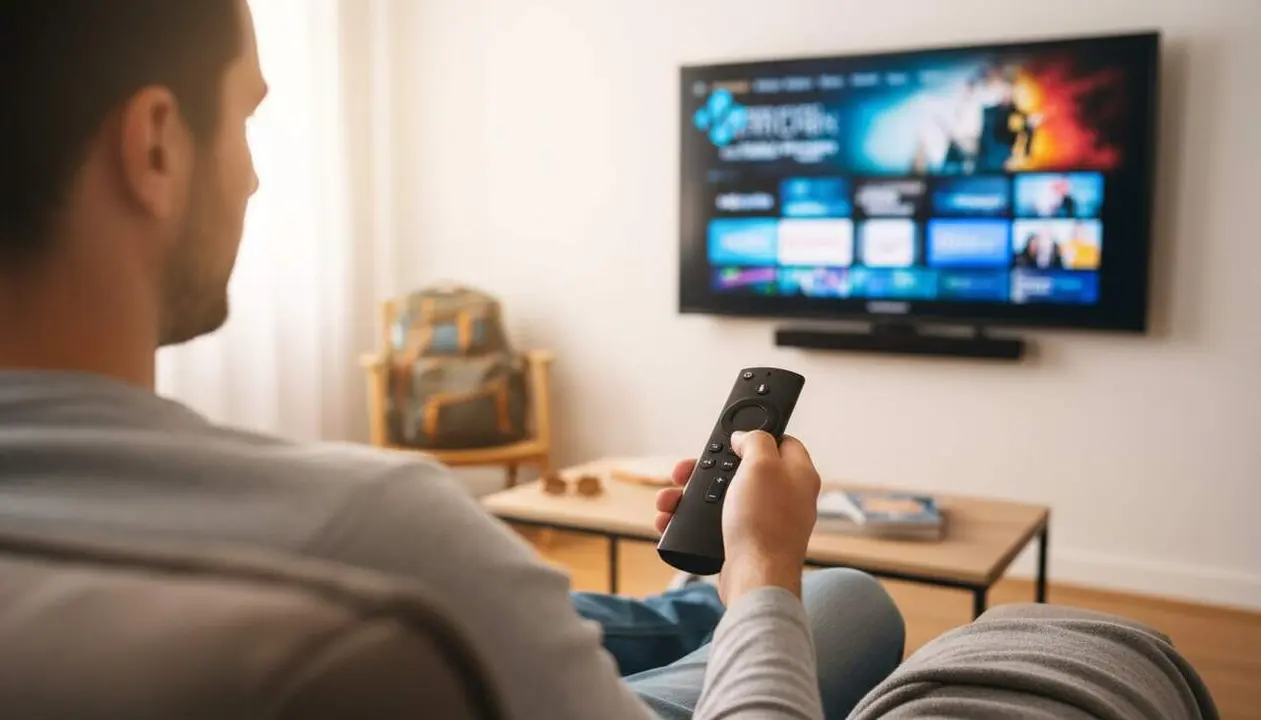

Installing Kodi before going on vacation is a trick that almost no one activates, but it can completely transform your audiovisual experience. The Fire TV Stick device is compact and easy to connect to any TV with an HDMI input, but Kodi enriches it with functionalities that go far beyond simple access to streaming platforms.
The main advantage is that Kodi allows playing local content, ideal when the accommodation’s WiFi connection is insufficient or saturated. It also offers access to services that do not have an official app for Fire TV or have limited versions. In short, it is a reliable alternative resource when an app fails.
Why Install Kodi on Your Amazon Fire TV Stick Before Vacation?
What problems does Kodi solve in destinations with irregular internet?
Many rural houses and hotels suffer from irregular or saturated WiFi coverage, especially during high season. Kodi allows you to have movies, series, and other previously downloaded content so you can watch them without a data connection.
This means you won’t depend on the WiFi quality nor will you consume mobile data, a great help for bad weather days or to entertain children without complications.
How does Kodi help when Fire TV Stick apps are limited or unstable?
Some platforms do not have an app for Fire TV or offer incomplete versions. With Kodi, you can add official or third-party add-ons to expand access to channels, radio, online videos, and other multimedia services.
It is also a useful resource when an app stops working after an update, as Kodi remains compatible with many formats and services.
How to Install Kodi on Your Amazon Fire TV Stick Before Leaving
What steps should you follow to have Kodi up and running quickly?
The process is simple and only needs to be done before going on vacation to save you complications later.
- Download Downloader from the Fire TV Stick app store.
- Go to Settings > My Fire TV > Developer Options > enable Install unknown apps for Downloader.
- If you don’t see developer options, go to My Fire TV > About and press the device name seven times in a row.
- Open Downloader and enter the address https://kodi.tv/download/.
- Select Android and download the version compatible with your Fire TV Stick: usually ARMV7A 32-bit or ARMV8A 64-bit for newer models.
- When the download finishes, press Install and wait for it to complete.
- Finally, open Kodi from your apps and start configuring it.
What should you check to ensure Kodi works correctly?
- The device has downloaded and installed Kodi without errors.
- You can open Kodi and navigate through the initial menus.
- You have added some local content or add-on to test playback.
- The Fire TV Stick recognizes OTG adapters if you want to connect external drives.
How to Make the Most of Kodi for a Complete Audiovisual Experience During Vacation
How to prepare content to watch offline?
Before traveling, download movies, series, or children’s videos to the device or to an external drive through OTG adapters. That way, you have them at hand even if there is no reliable internet.
How does Kodi complement the native Fire TV Stick apps?
Kodi works as an alternative player that can include channels and services not found in the official store. In case of failures or problematic updates, it maintains access to your content and prevents interruptions.
Also, having Kodi pre-configured avoids wasting time making adjustments in an unknown place. Just connect and enjoy.
| Platform / Version | Compatible | Recommended Version |
|---|---|---|
| Fire TV Stick 4K | Yes | Kodi ARMV8A 64-bit |
| Fire TV Stick 3rd generation | Yes | Kodi ARMV7A 32-bit |
To keep your device secure and optimized, remember to update both Kodi and the Fire TV Stick when new versions are available. Enable two-factor authentication (2FA) for your streaming accounts and periodically review the permissions of installed apps.
If you notice any app or Kodi working unstably or requesting strange permissions, do not hesitate to seek professional help to avoid security risks or data loss. A well-managed device guarantees a more peaceful vacation.
In short, setting up Kodi on your Amazon Fire TV Stick before vacation is a smart decision that offers you more control, content, and peace of mind. With a few simple steps, you will have a flexible and complete multimedia center ready for any situation.
Frequently Asked Questions
- What is Kodi and why is it useful for the Fire TV Stick?
- Kodi is a media manager that allows playing local content and accessing services that don’t always have an official app on Fire TV Stick.
- Can I watch movies offline with Kodi?
- Yes, Kodi allows playing previously downloaded content, ideal for places with irregular or no WiFi.
- Is it difficult to install Kodi on the Fire TV Stick?
- No, you just need to download the Downloader app, enable unknown installations, and follow a few simple steps to install Kodi.