5 amazing Gemini features for Windows you need to enable now
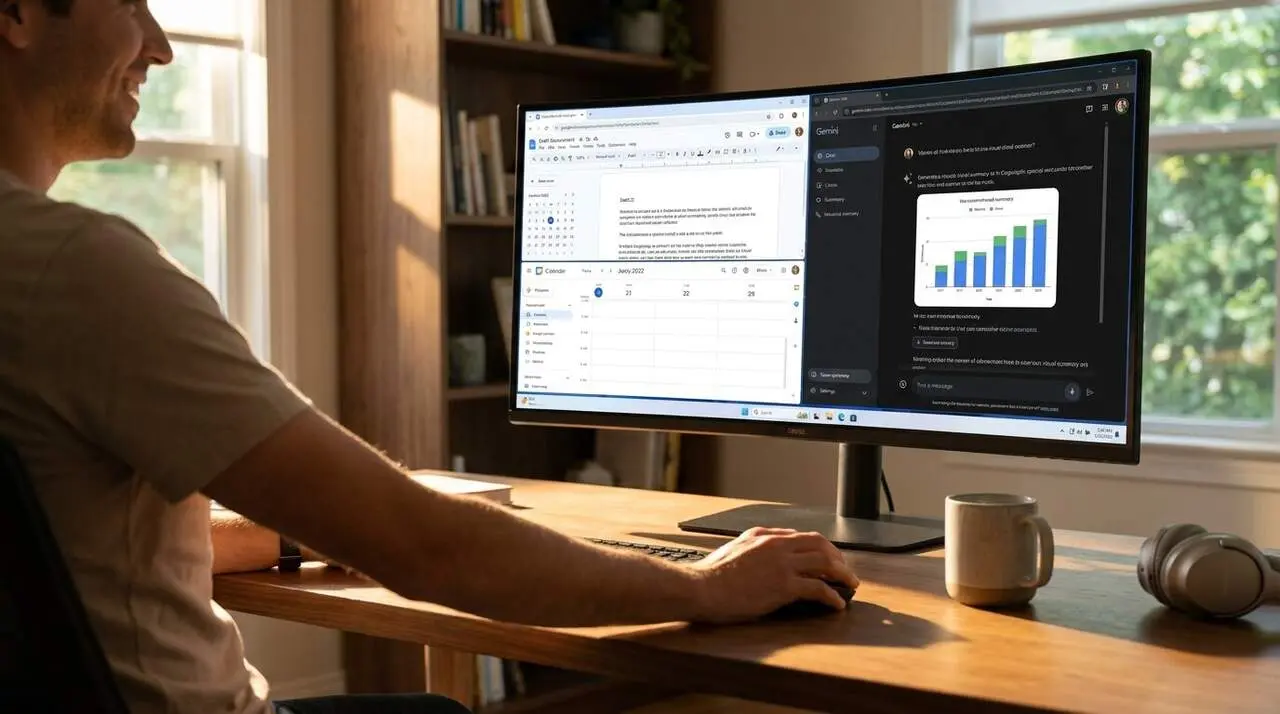

The new Gemini app for Windows offers instant access to the AI assistant from the desktop via the quick shortcut Alt+Space. Google has released the official Windows app and describes that Gemini deploys alongside the active application, allowing users to draft, summarize, search, or generate content without leaving the current task.
Many users of Google services —Gmail, Drive, Docs, and Calendar— will experience agility in routine tasks because Gemini can leverage the context of already open content (messages, documents, events) to provide more relevant responses.
What the app offers and Why it matters
Why should I be interested in this app?
If your work involves emails, shared documents, or meetings, Gemini for Windows reduces constant window switching and minimizes context loss. This means less time searching and more time producing (and fewer errors from copy/pasting data).
Main features summarized
Access with Alt+Space, integration with your Google profile, and creative tools like Nano Banana and Gemini Omni for images and video. Additionally, Gemini Spark acts as an agent to delegate research and synthesis tasks while maintaining human oversight.
How to set up and use Gemini on Windows
How do I start using the app?
Open the app from the official Google installation and press Alt+Space while working to deploy Gemini on the active window; then, type or speak your query and you will receive responses related to the visible content.
Practical steps (source: Google statement; source does not detail exact settings paths)
- Download the app from the official Google site (the statement indicates availability for Windows).
- Sign in with your Google account when prompted by the app.
- Press Alt+Space to open Gemini alongside the active app.
- When Gemini requests access to services, grant permissions to integrate Gmail, Google Drive, Docs, and Calendar if you want contextual responses.
- Try creative generation by selecting Nano Banana for images or Gemini Omni for video within the same pop-up window.
Note: the official communication does not specify the exact names of each settings option within the app; if at any point you receive a permission request, that is the prompt to allow integration with Google services.
Creative features and key integrations
What can Gemini do with my files and emails?
Gemini can locate data within an email thread, summarize shared documents, and compare meeting notes without interrupting your work (according to Google's statement).
Details of creative tools
Nano Banana allows creating custom images; Gemini Omni facilitates video structuring; and Gemini Spark acts as an autonomous agent for research and complex plans under your direction.
Verification checklist: How to know if it affects you
- You use Gmail or Drive for work: yes → you will likely benefit.
- You prefer to work from the desktop without switching tabs: yes → you will notice fluidity.
- You need to quickly create images or videos: if you use creative tools, Gemini includes Nano Banana and Gemini Omni.
- If you only use other non-Google services, the contextual advantage will be limited.
| Platform / Status | Availability | Notes |
|---|---|---|
| Windows | Available | Official desktop app published by Google; access with Alt+Space. |
| macOS | Some features already available | Specific features (e.g., screen sharing with the assistant) were first implemented on macOS according to the note. |
| Web (browser) | Accessible | Previously, the main access to Gemini was via browser. |
| Android / iOS | Voice features deployed | Gmail Live, Docs Live, and Keep Live were launched first in English and on mobile devices. |
Quick tip: try a simple task (summarizing a long email) to verify permissions and response quality before entrusting more critical processes.
Extra prevention and maintenance: keep the app updated, use two-factor authentication on your Google account, periodically review permissions, and back up original documents (recommended procedure to reduce risks if permissions are granted to AI tools).
Warning signs: responses that include outdated information, unexpected access requests to unrelated folders, or unauthorized changes in documents. If you detect suspicious behavior, revoke permissions and consult a specialist technician.
The reality is Gemini for Windows can change how we manage daily work with Google services: instant access, context integration, and creative tools at your fingertips. Try it with small tasks; evaluate permissions; and adapt your workflow according to real efficiency gains.
Frequently Asked Questions
- How do I quickly open Gemini on Windows?
- Press Alt+Space while working to deploy Gemini on the active window; then type or dictate your query.
- Can Gemini read my Gmail emails?
- According to Google's note, the app can integrate Gmail data if you authorize the corresponding permissions; grant them only if you trust the environment.
- Can I generate images and videos from the app?
- Yes: the app includes access to Nano Banana for images and Gemini Omni for videos, according to the official statement.