How to make an old TV smart with a USB pendrive
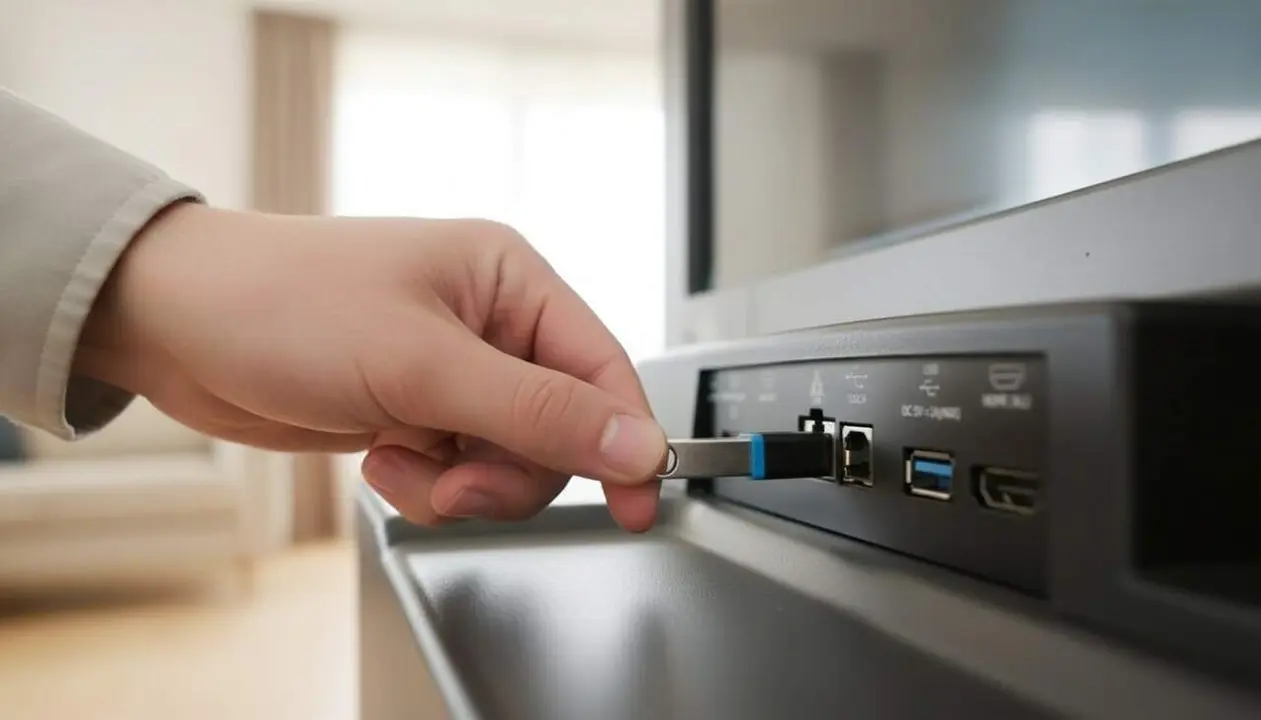

Yes: you can prepare a pendrive with movies and connect it to the TV to play them directly. Source: content provided by the user. This method avoids having to enter Netflix, Disney+ or other apps and works especially well on screens that show a file explorer when the USB option is selected.
I started with an anecdote: I had an old TV that didn’t support the app I wanted and one afternoon I copied an episode to a pendrive. I tried it. And it worked: the screen read the file and I watched it offline. Simple and effective.
What it allows and why it matters to the reader
What can your TV’s USB port do?
Answer: most TVs can read and play videos, photos, and audio from a pendrive if the format is compatible. This functionality turns the screen into an offline entertainment option.
This matters to the reader because it offers autonomy (no constant connection needed) and savings (no additional subscriptions if you already have the files). Also, it is a useful option when internet connection is slow or intermittent.
How is the interface presented on the TV?
Answer: many models show an Input menu or a file explorer when they detect a USB device, but implementation varies by manufacturer.
Some TVs directly open a list of files; others require navigating to Input or Source and selecting USB. This might seem like a minor detail, but it affects usability for less tech-savvy users.
How to prepare the pendrive and the files
How to copy the files step by step?
Answer: download or copy the videos to your computer, transfer them to the pendrive, and connect it to the TV. Then select the USB option from the TV menu.
- Copy files from your computer to the pendrive (drag or copy/paste).
- Make sure the pendrive is formatted in a file system compatible with the TV (check your model’s manual).
- Safely eject the pendrive from the system before removing it (to avoid corrupting files).
A practical tip: use a pendrive in good condition with enough space to avoid read errors.
Which video formats should I try?
Answer: TVs support different formats; check your model’s manual for the exact list. Not all files will play automatically.
If a file won’t open despite being fine on the pendrive, it is usually due to container or codec incompatibility: the file may be properly saved but the TV does not recognize the specific format.
How to check and troubleshoot
Why won’t the video play?
Answer: often because the format is not compatible or the pendrive has errors. It could also be that the TV does not recognize the device’s file system.
How to diagnose: try other known files, use a different pendrive, and review the TV manual. If a file explorer appears but not the format, incompatibility is the most likely cause.
What are the steps to fix common errors?
Answer: try another pendrive, convert the file to a more common format, or consult the manual for compatible formats.
- Make sure the pendrive is connected when the TV is on or restarted.
- Avoid removing the pendrive while the TV is reading a file.
- If the TV offers USB updates, consider updating if the manufacturer recommends it (check the manual first).
Practical steps and verification
How to select the USB input on the TV?
Answer: turn on the TV, open the Inputs or Source menu and select USB. Often a file explorer with files appears.
Example of concrete steps:
- Connect the pendrive to the TV’s USB port.
- Open the main menu and go to Input or Source.
- Select USB or the option that indicates the external device.
- Use the explorer that appears to open videos, photos, or audio.
Checklist to verify if you are affected
Answer: check these signs to know if you can play files from a pendrive.
- Your TV has a physical USB port accessible.
- When entering Input or Source, a USB option or file explorer appears.
- You have tried a pendrive in good condition and the TV detects the device.
- The TV manual mentions file playback from USB.
If any of these boxes are not checked, you will likely need to consult the manual or try another device.
| Model / Version | Affected | Note |
|---|---|---|
| Old TV (generic) | Often | Depends on the model; check the manual for compatible formats |
| Modern TV with USB | Yes | Many show a file explorer, but check accepted codecs |
| Model without physical USB | No | An external solution is needed (not described in the source) |
Analyzing the practice, the key factor is the compatibility between the file and the TV’s built-in player. For this reason, it is advisable to test beforehand, keep backups, and not remove the pendrive while reading.
Additional maintenance tips: update the TV software if the manufacturer recommends USB updates; use reliable pendrives; make copies of important files. These routines minimize errors and extend the device’s lifespan.
A final expert note: transforming an old screen into an entertainment alternative is not only economical but also practical for travel, second homes, and situations with limited connection.
Summary and reflection: preparing a pendrive with videos and connecting it to the TV allows watching content without relying on the internet, as long as format compatibility is checked and a pendrive in good condition is used. Review the steps: copy, connect, select USB and try known files. If necessary, check your TV manual to avoid surprises.
Frequently Asked Questions
- How do I know if my TV supports playback from a pendrive?
- Look for a physical USB port on the screen and check in the Input menu if the USB option appears. Also check the TV manual.
- What should I do if the video won’t play even though the pendrive seems correct?
- Try another file or another pendrive and consult the manual for compatible formats; codec incompatibility is the most common cause.
- Can I update the TV via USB?
- Some models allow updates via USB; check the manufacturer’s manual before attempting to avoid problems.