September Android Drop: 5 new features coming to all phones and how to activate them
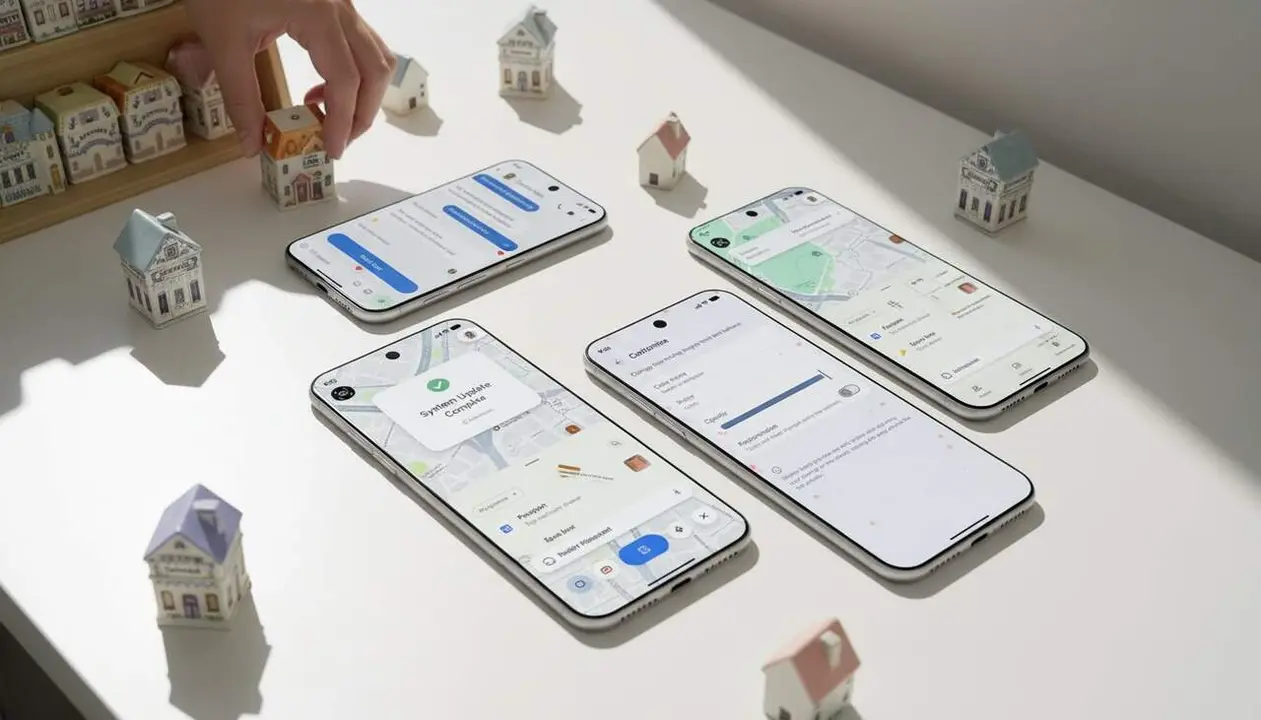

Yes: the September Android Drop rolls out five main features arriving through Google Play or app updates. According to the analysis published on Xataka by Yúbal Fernández (September 4, 2026), the global branch includes Motion Assist, Gemini integrations, and accessibility improvements. Xataka is the source of this summary.
In this piece, I explain what each new feature does, who it serves, and above all, how to check and enable these novelties on your phone (without technical hassle). A quick note before starting: not all tools activate the same capability depending on the Android version or the app involved.
What the update includes and why it matters to you
Why does this matter to the reader? Because this is a massive update arriving via Google Play and can modify everyday experiences: less motion sickness while traveling, object recognition, or integrated notes in chat. If you use your phone daily on transport or have accessibility needs, you’ll notice the difference.
What is Motion Assist and how does it serve you?
Motion Assist prevents motion sickness (nausea from looking at the screen while moving) by adding a slight overlay of dots or bubbles that move synchronously with the vehicle. This helps align visual perception and reduces the feeling of sickness when watching videos or text.
Gemini and Find Hub: what can they do?
Gemini can now remember where you left objects without a tracker if you tell it; this memory connects with Find Hub. The article states that for this feature, a device with Android 16 or higher is required, as it depends on APIs and services activated in these versions.
How to install the Android Drop on your phone
Why should you do it now? Because these novelties arrive via two channels, and your reaction decides if you get them quickly or a little later. If you want to try them right now, follow simple steps; no technical expertise needed.
What steps should I follow to receive the update?
Check is the key word: see if it has already arrived via the system or the app. Below is a step-by-step list.
- Go to Settings on your phone > Updates (or Google Play Updates) and check if a rollout is available.
- Open Google Play > Manage apps and device > Updates to apply app updates (for example, Google Messages or other apps integrating new features).
- For specific features (Gemini / Find Hub), verify compatibility: the device must run Android 16 or higher for some capabilities to be active.
- If a feature depends on the app (like integration with Google Keep), update that app from Google Play and restart the device.
App updates or Google Play updates: what's the difference?
Small tools and interface tweaks usually arrive via Google Play as 'drops' (changes Google distributes independently of the manufacturer). Some specific integrations—like chat customization or Messages/Keep integration—roll out with an update of the corresponding app.
How to check you have the new Features and what to do if they are missing
Why is it relevant to check? To avoid confusion: it’s easy to think the update hasn’t arrived when actually a feature depends on an app that needs manual updating. Checking is quick and tells you if you need to do anything else.
How do I know if I’m affected?
Check concrete signs: don’t guess, confirm. It takes less than a minute.
- Do you see a Motion Assist option in Settings or within the camera? → You are affected.
- Does Gemini offer to save the location of an object and mention Find Hub? → You need Android 16 for this full feature.
- Is there an option in Google Messages to customize backgrounds and colors in RCS chats? → Feature active.
- Is there a new action to create or edit Google Keep notes directly from chat? → Integration active.
What to do if a feature doesn’t appear?
Update the respective app first; if it still doesn’t appear, restart your phone and check Settings > Google Play Updates. If a feature depends on Android 16 and your device has an earlier version, the option will be limited.
| Platform / Version | Affected | Comment |
|---|---|---|
| All Android devices | Yes | Will receive most tweaks via Google Play or app updates. |
| Android 16 and higher | Yes (complete) | Features like Gemini with Find Hub require this version to activate all capabilities. |
Final checks: after installing, open the involved apps and look for new options in settings or the help page within the app.
Recommendations and maintenance: always keep main apps updated, enable auto-updates in Google Play, review camera and microphone access permissions for vision or assistance features, and keep a recent backup before major changes. If you detect odd behavior (repeated crashes, abnormal battery drain), try uninstalling the update of a problematic app and contact the manufacturer’s support if needed.
Warning sign: if a feature doesn’t install and the manufacturer hasn’t launched it for your model, it may be a compatibility limitation; consult official support. If you suspect a corrupted update (phone won’t boot or critical errors), seek professional help.
In a nutshell: the September Android Drop brings small but useful improvements to interface and accessibility. Apply updates via Google Play and update involved apps; ensure your device has the minimum required version for specific features.
The reality is these novelties can improve daily phone use, especially if you use the device while moving or need quick access tools. Review the indicated options and don’t hesitate to update when you get the notification (it’s quick and safe).
Frequently Asked Questions
- How do I know if I have Motion Assist on my phone?
- Check Settings > Accessibility or the camera’s help page; if it’s not there, check Google Play Updates and update related apps.
- Do I need Android 16 for all new features?
- Not all; many come to all devices via Google Play, but Gemini with Find Hub requires Android 16 to activate full functionality.
- How do I activate the Messages–Keep integration?
- Update Google Messages and Google Keep from Google Play, open a chat, and look for the option to create or share notes within the conversation.