How to free up space on your phone without losing Photos or data
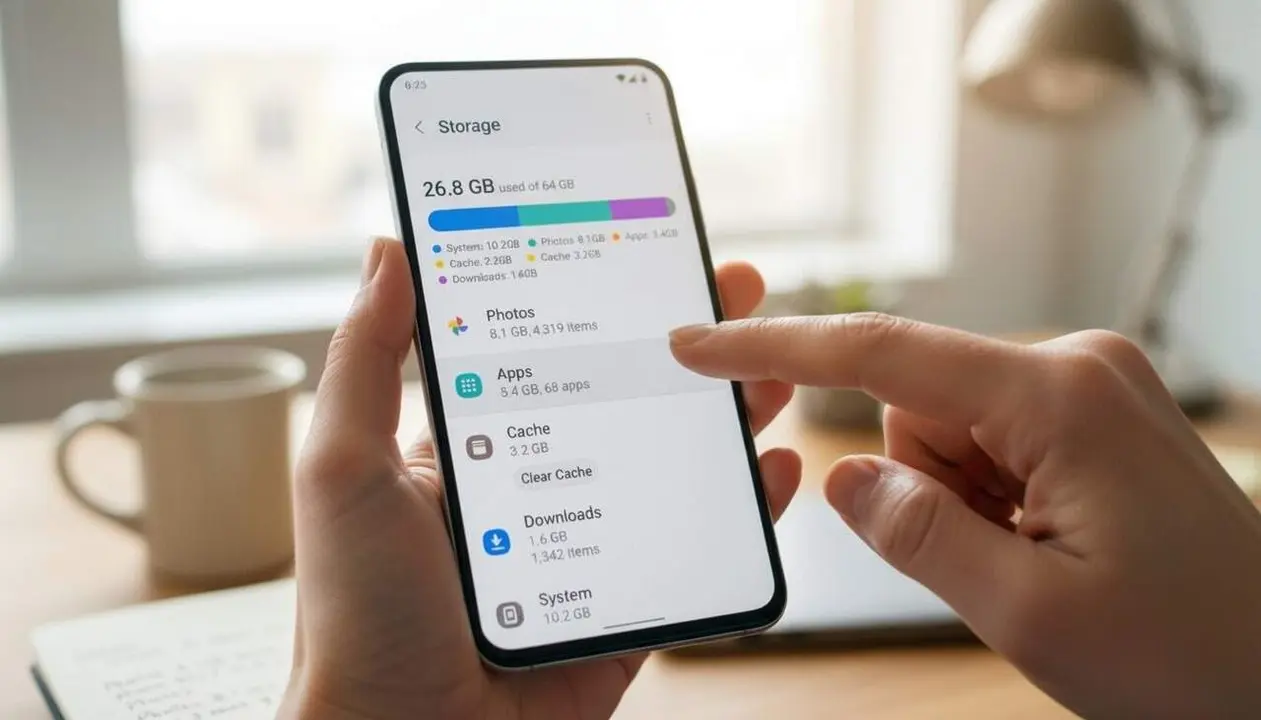

When your phone tells you that storage is almost full, you don't always have to delete what seems obvious. Many think of photos or apps, but often it is temporary files and old downloads that take up the most space.
Understanding what consumes memory and how to manage it helps free up space safely and smartly, without risking losing important information.
How to know what takes up space on your phone?
Why is this information key before deleting?
Operating systems like Android and iPhone offer in Settings a detailed breakdown of space occupied by categories: photos, apps, temporary files, downloads, etc. This diagnosis lets you avoid deleting blindly and target the real problem.
What is the difference between cache and data?
Cache consists of temporary files that apps create to run faster but can be deleted without losing content or settings. On the other hand, deleting data may mean losing settings or documents inside the app. It's best to start with the cache of the heaviest apps.
Which apps and files are the main culprits?
Why are WhatsApp and the Downloads folder usual suspects?
The Downloads folder fills up with files like PDFs or installers that we only use once. WhatsApp accumulates photos, videos, and audios that can take up gigabytes and can be managed from within the app itself by sorting by size and deleting only the largest ones.
How to manage Photos and apps without losing data?
If photos are in the cloud via Google Photos or iCloud, you can delete local copies to gain space. Android also allows archiving rarely used apps: it frees memory but keeps the icon and data in case you need them later.
The 8 steps to free up space without risk
What is the most effective order to optimize storage?
- Carefully review what takes up the most space on your phone.
- Clean the Downloads folder by deleting old or unnecessary files.
- Control WhatsApp and other messaging apps by deleting heavy files.
- Delete the cache (not data) of the heaviest apps to quickly recover space.
- Delete offline content you no longer use, like music or documents.
- Ensure photos are fully synced to the cloud before deleting local copies.
- Archive or uninstall apps you hardly open to free up memory.
What precautions should be taken before deleting?
Never delete anything without confirming that you have a backup. If not, save important files to the computer or to the cloud. There is no need to install external apps for cleaning; the phone’s native functions are powerful enough to detect and delete what’s excess safely.
| Platform / Version | Affected | Available solution |
|---|---|---|
| Android | Yes | Management in Settings and archived apps |
| iPhone | Yes | Management in Settings and iCloud |
The integrated tools of Android and iPhone allow thorough storage control. Understanding this mechanism helps you gain space without risk of loss.
Regularly reviewing memory usage, enabling two-step verification for security, and making periodic backups are basic habits to keep your device agile and safe. If you detect unusual problems or data losses, don’t hesitate to consult a professional.
So, before deleting photos or apps, remember that very often the problem lies in hidden or temporary files. With these steps, you will gain space effectively and safely, without giving up your most valuable information.
Frequently Asked Questions
- How can I know exactly what takes up space on my phone?
- Go to Settings and look for the storage section to see a detailed report by categories.
- Is it safe to delete app cache?
- Yes, cache consists of temporary files that do not affect important data or settings.
- How can I delete large WhatsApp files without losing conversations?
- Use the storage management within WhatsApp to sort and delete only the heaviest files.