3 surprising tips to improve WiFi speed at home
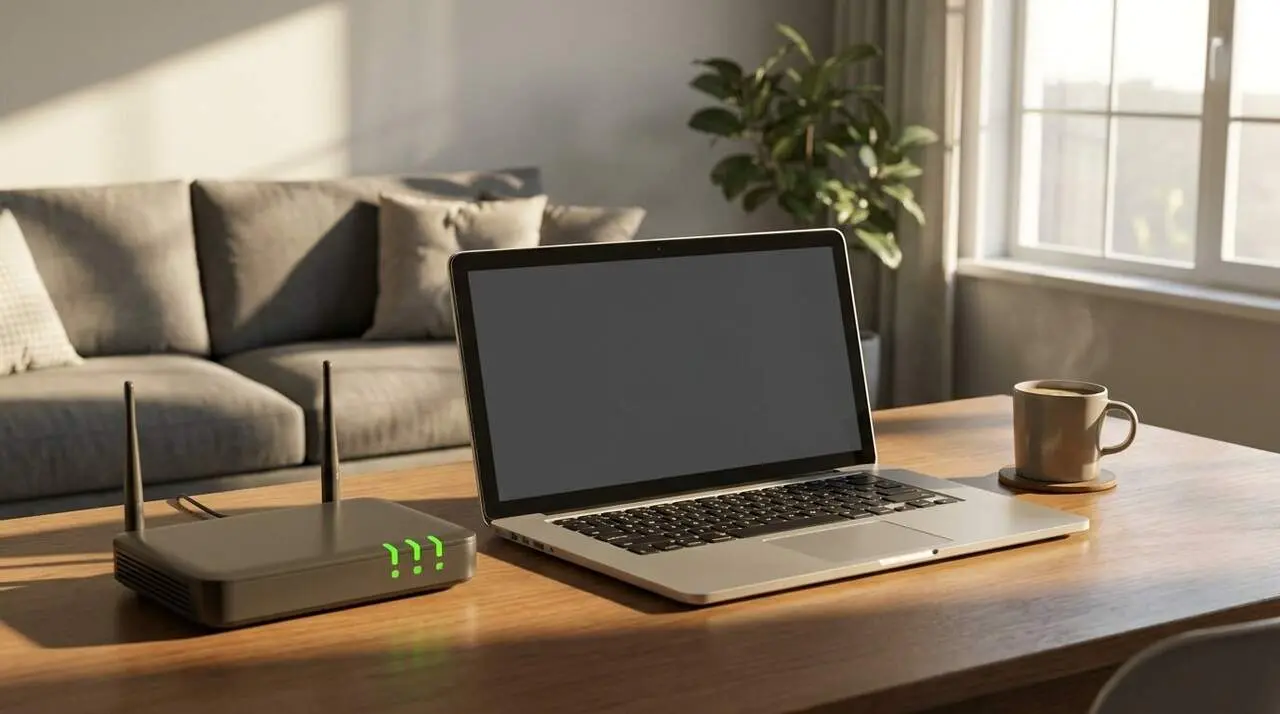

Imagine coming home after a long day and finding that the WiFi is slow or cuts out just when you need it most. You're not alone; many suffer the frustration of an unstable connection without knowing that the problem may have an easy solution.
Improving WiFi speed at home doesn’t always require changing plans or spending on new equipment. With some simple adjustments, you can notice a clear difference in coverage and connection quality, even in homes with many devices connected simultaneously.
Place the router in the ideal spot to boost coverage
Why does the router’s position affect speed?
The location of the router is key because the WiFi signal can lose strength as it passes through thick walls, doors, or bulky furniture. Placing it in a corner or hidden inside a cabinet creates dead zones and speed drops that will annoy any user.
The golden rule is to place the router in a spot as central and elevated as possible within the house. The fewer obstacles, the better the signal will reach every corner. If your router has external antennas, try placing one vertically and another horizontally; this way, you cover devices in different positions.
Practical tips to optimize placement
- Avoid placing the router behind closed furniture or on the floor.
- Keep it away from appliances that cause interference, like microwaves or TVs.
- If you have multiple floors, try to place it on the most used floor or the central one.
Choose the right band: 5 GHz or 6 GHz for higher speed
What do the 5 GHz and 6 GHz bands offer?
Many modern routers work with dual or triple bands. This option allows connection to various frequencies: 2.4 GHz, 5 GHz, and even 6 GHz. The 2.4 GHz band has more range but is saturated and more susceptible to interference.
The 5 GHz and 6 GHz bands offer higher speed and less interference but have a shorter range. If you are close to the router, connecting to these bands will make the connection more stable and faster.
How to manage connections between bands?
- Prioritize 5 GHz or 6 GHz for fixed devices or those you use near the router, like computers or smart TVs.
- Use the 2.4 GHz band for devices in rooms further away or that move around the house.
- If the router allows, manage connections by band to avoid saturation and improve the experience.
Keep the router updated and control traffic to ensure stability
Why is updating firmware key?
Manufacturers release firmware updates that not only strengthen security but also optimize performance and management of multiple connections. Ignoring these updates can cause instability or lower speeds.
Updating the firmware is a simple task that can make a big difference in connection quality. Additionally, it ensures the network is protected against unauthorized access that could consume bandwidth and harm you.
Manage Quality of Service (QoS) to prioritize usage
- Activate the QoS function on the router to prioritize essential applications like video calls or online gaming.
- This way, even if the network is saturated, the most important activities will receive more bandwidth.
- Remember this doesn’t increase total speed but does improve the experience when many devices are connected.
| Tip | Main Benefit | Key Advice |
|---|---|---|
| Router Location | Improves coverage and avoids dead zones | Place it in a central and elevated spot |
| Band Choice | More speed and less interference | Prioritize 5 GHz or 6 GHz if possible |
| Updates and QoS | Stability and better traffic management | Update firmware and enable QoS |
Running a speed test at different points in your home will help you identify whether the problem is coverage, congestion, or both. This way, you can apply these tips more precisely and enjoy a WiFi connection that really works for you.
With just three simple changes, your Internet experience can go from frustrating to satisfying. No need to complicate things further: move the router, choose the right band, and keep the system updated. You’ll see how your WiFi surprises you.