
How to empty the WhatsApp trash and free up space to make the app work better
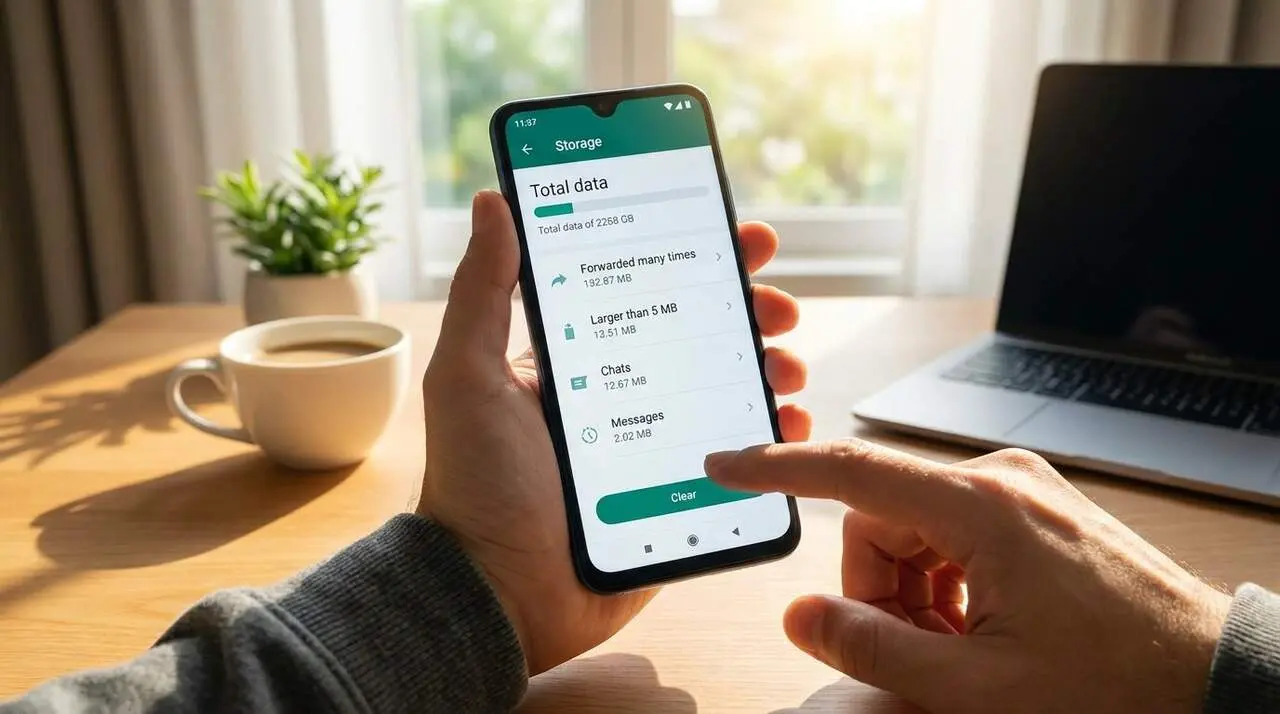

WhatsApp offers a tool within Settings > Storage and data to control the heaviest files that take up space. This “trash bin” shows images, videos, audios, and other files that can saturate your device. Deleting them is key to improving performance and freeing internal memory.
The information comes from the function built into WhatsApp itself, and it is risk-free if done carefully, as you can select which files to delete.
How to find and empty the WhatsApp trash bin
Why is it important for you?
If you have space problems or the app runs slow, this function is a starting point to regain capacity and agility without having to delete entire chats.
Steps to access and delete files
- Open WhatsApp on your mobile.
- Go to Settings.
- Select Storage and data and then Manage storage.
- Look for the section under Review and delete items, which concentrates the heaviest files.
- Tap Select, choose the files you want to delete, and touch the trash bin icon.
Why WhatsApp consumes so much space
Factors that especially affect users
The combination of automatic downloads, very active groups, and large multimedia files makes WhatsApp take up much more space than it seems at first glance.
Which elements should be monitored?
- Photos, videos, and audios that are downloaded automatically and accumulate unchecked.
- Groups with many interactions, generating constant memes, videos, and audios.
- Duplicate files that are forwarded or saved to the gallery, duplicating the occupied space.
- Temporary data and cache copies that are not always deleted automatically.
How to improve your phone’s performance by freeing space
Why it matters to keep free space?
A phone with storage almost full loses agility and can have problems with updates, multitasking, and app responsiveness, including WhatsApp.
Tips to make it effective
- Disable automatic downloads of photos, videos, and audios in Storage and data.
- Prevent WhatsApp from automatically saving files to the gallery to reduce duplicates.
- Review and delete messages and files from very active groups.
- Delete long audios that take up a lot of space.
| Platform / Version | Affected | Available solution |
|---|---|---|
| WhatsApp for Android and iOS | Yes | Function built into Settings |
Check if your device is saturated with these indicators:
- WhatsApp or the phone runs slowly without a clear reason.
- Storage space is almost full.
- You will receive errors when downloading files or updating the app.
To keep the device in shape, regularly update WhatsApp and the operating system, enable two-step authentication, and review permissions to avoid unnecessary downloads. Back up only the chats and files you really need.
If you notice persistent problems or strange errors, consult a professional before making radical changes or formatting the device.
Recovering space with the WhatsApp trash bin not only frees memory but also *breathes life* into your phone and keeps your communication smooth and uninterrupted. Don’t let accumulated files slow down your daily life.
Frequently Asked Questions
- How do I know if the WhatsApp trash bin is full?
- If WhatsApp or the phone runs slowly and you see many large files in Manage storage, the trash bin should be emptied.
- Why are some undeleted files removed automatically?
- Temporary or cache files may remain stored until the system decides to clean them or until you manually do it.
- Do I lose important information if I empty the trash bin?
- No, only the files you select are deleted. Messages and photos not deleted remain intact.