5 essential steps to project the mobile screen to the TV
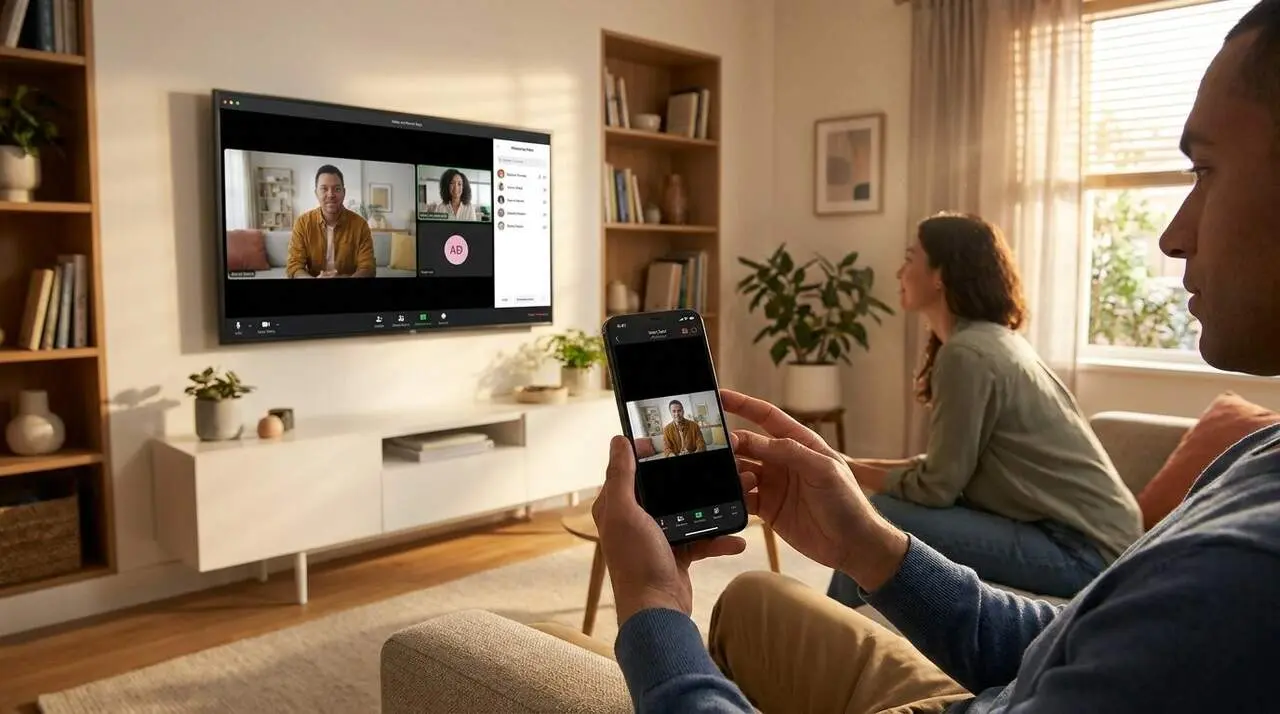

When you came back home and wanted to show that video or photo on your TV, you surely asked yourself: how to mirror the mobile screen? You’re not alone. Many people face this daily challenge, but with a few simple steps the solution is within reach.
Mirroring the mobile screen on the TV not only enlarges the viewing experience but also transforms the digital experience, making it more comfortable and accessible for any situation: from a work meeting to a family movie afternoon. And yes, we’ll explain how to do it clearly and orderly.
How to mirror the mobile screen with a wired connection
Android: from USB-C to HDMI without complications
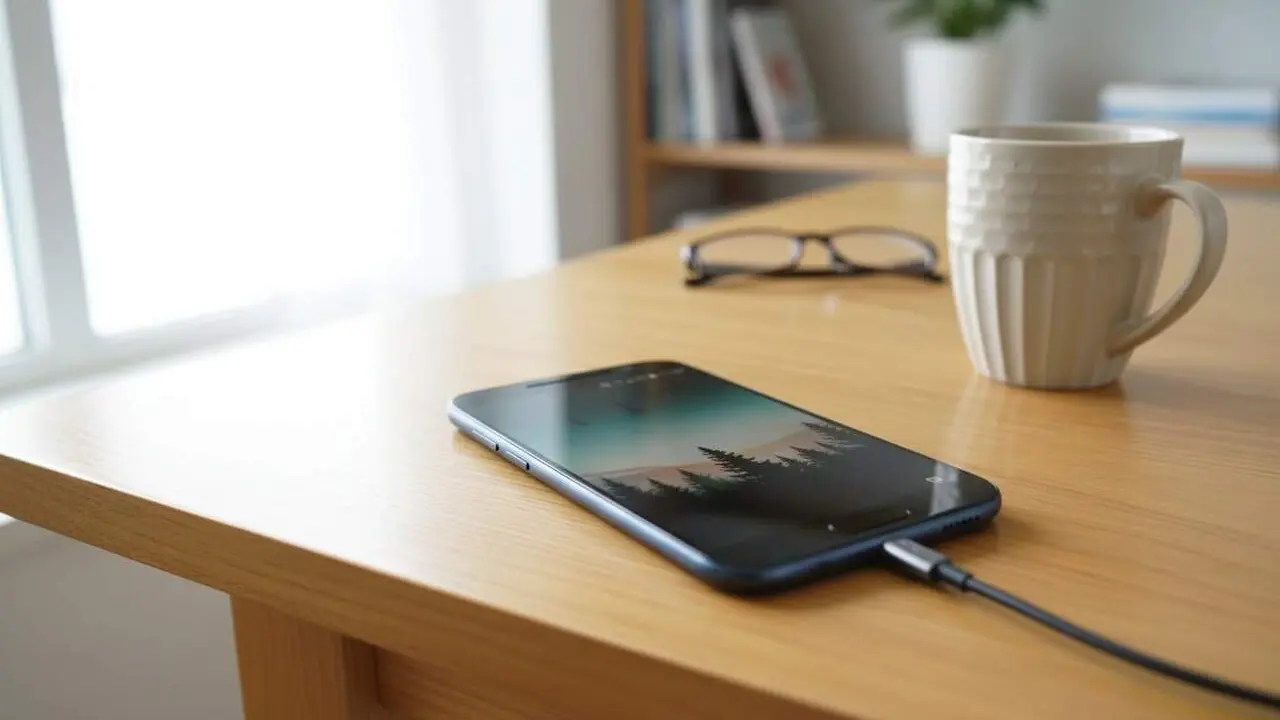
Many high-end Android phones allow direct connection to the TV with a USB-C to HDMI cable. You just need to link the mobile and the TV, select the HDMI input, and the image will automatically be replicated.
But beware: not all models are compatible. Before buying a cable, check if your device supports this function to avoid surprises.
iPhone: adapters and cables for all versions
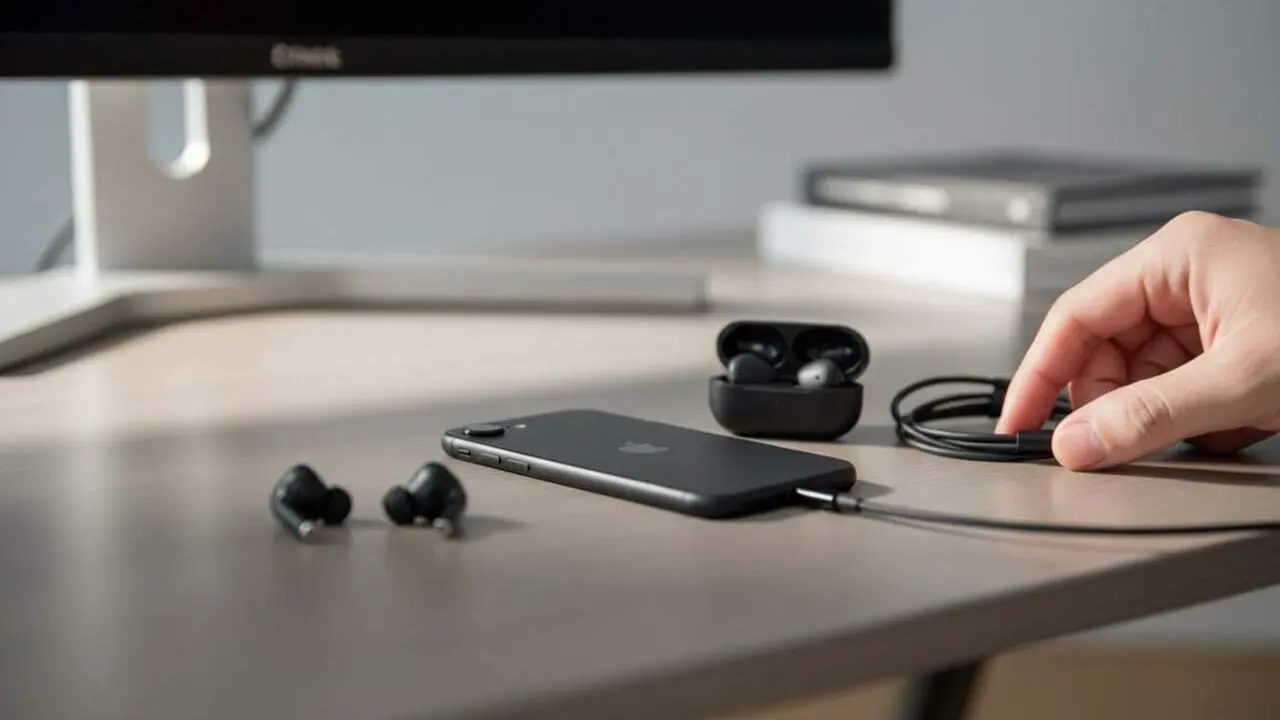
iPhones prior to the iPhone 15 need a Lightning to HDMI adapter, while models 15 and later can connect directly with a USB-C to HDMI cable.
You just have to connect both ends, select the HDMI source, and you’ll have the screen mirrored without delay.
Wirelessly mirroring: the freedom of WiFi
Android and Google Cast: the most widespread combination
If you have a Smart TV compatible with Google Cast, mirroring is as easy as opening an app like YouTube, tapping the cast icon, and selecting the TV.
If your TV doesn’t have this function, a Chromecast connected to the TV is a practical and affordable solution to achieve it.
iPhone and AirPlay: mirroring the screen with a tap
Apple’s AirPlay system lets you mirror the screen if the TV supports this technology or if you have an Apple TV. You just need to open Control Center, press "Screen Mirroring," and choose the device.
If your TV is not compatible with AirPlay, you can use a cable adapter or third-party apps for Chromecast that facilitate this transmission.
Key tips to avoid issues in mirroring
The importance of the same WiFi network
For transmission to work smoothly, the phone and TV must be connected to the same WiFi network. It’s a detail often forgotten that can frustrate anyone.
Also, check that the connection is stable and that there are no interferences that could cause delays or dropouts.
Keeping devices and apps updated
Operating system updates and projection apps are key. Many times they fix errors and improve compatibility between devices.
Before investing in adapters or additional devices, test if your TV already supports direct mirroring to avoid unnecessary expenses.
| Connection type | Advantages | Disadvantages |
|---|---|---|
| Wired connection (HDMI) | Superior stability, ideal for long videos and presentations | Less freedom of movement, requires cables or adapters |
| Wireless connection (WiFi) | More comfortable and versatile, allows free movement | Depends on WiFi network quality, may have delays |
Mirroring the mobile screen to the TV is today an accessible task for any user. Whether wired or wireless, Android and iPhone offer options that adapt to different needs and situations.
Choosing the best method according to the device and connectivity is the key to enjoying an expanded and hassle-free digital experience.
With these steps and tips, you can start sharing photos, videos, or any content with your family or friends comfortably and visually impressively.