Android Auto vs Android Automotive: key differences to manage them

The information is based on official data and technical analyses about Android Auto and Android Automotive. Google has developed two technologies to bring Android to the car, but with clearly differentiated architectures and functionalities.
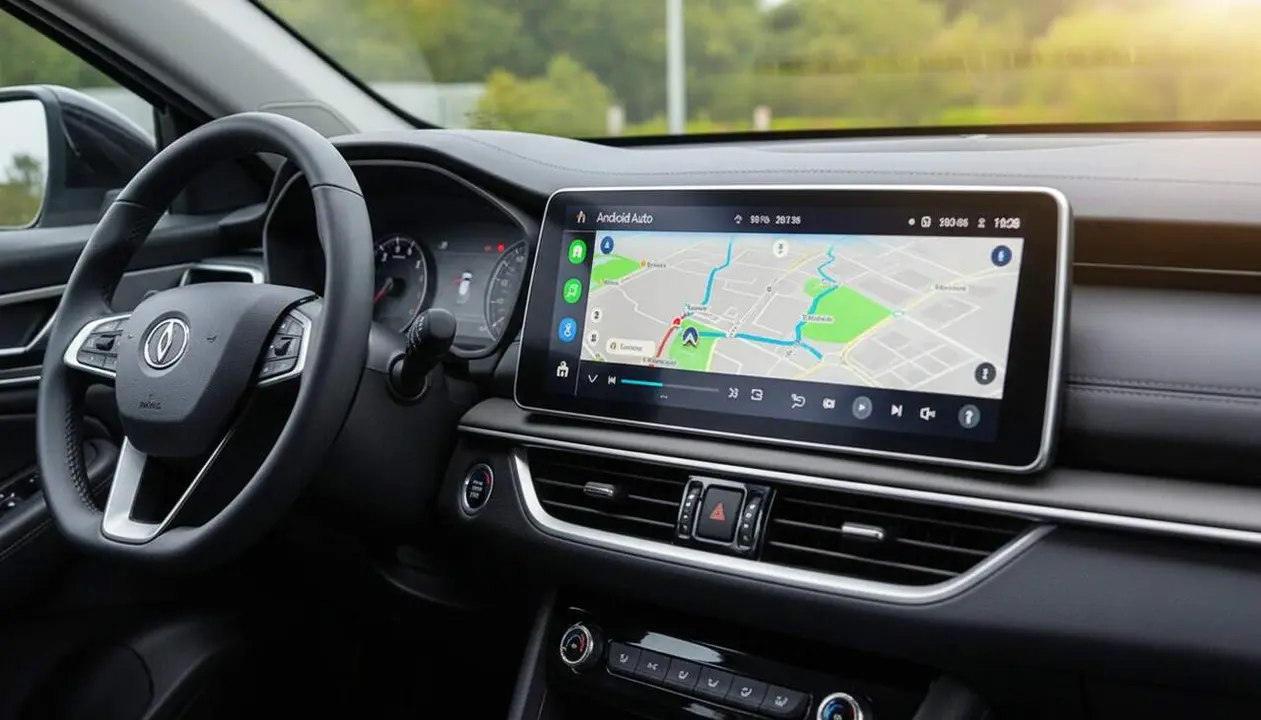
Android Auto is essentially an app that runs on your mobile phone and projects its interface to the vehicle’s screen, either wired or wirelessly. This means the vehicle mainly acts as a screen and controller, but all apps and data are processed on the mobile phone.
In contrast, Android Automotive is a full operating system installed directly in the car, which runs independently and allows downloading and running native applications without the need for a phone. When it includes official Google services like Maps, Play Store, or Assistant, it is called Google Built-in. This greatly expands its possibilities, with apps and functions not found on Android Auto.
Technical and functional differences
Architecture and execution
Android Auto depends entirely on the phone to run the apps, and the car only displays the interface and serves as a control. This limits the variety and complexity of available applications but ensures a consistent and safe experience.
Android Automotive is installed and runs directly on the car’s computer, offering a more flexible environment with a fuller system that can operate without a phone. This opens the door to more app categories and customization by manufacturers.
App compatibility
Some apps have separate versions for Android Auto and Android Automotive, and some only exist for one of the two systems. For example:
- Music and audio apps (streaming, radio, podcasts) available on both.
- Navigation applications like Google Maps or Waze present on both.
- Home automation control and points of interest also accessible on both.
- Messaging and VoIP calls only on Android Auto, still under development for Automotive.
- Video applications like YouTube or Netflix exclusive to Android Automotive and only available with the vehicle stopped.
- Games and web browsers available in beta phase on Android Automotive, still pending arrival on Android Auto.
Which users and vehicles use them?
Android Auto: phone extension
This system is ideal for drivers who want to connect their smartphone to the car and use their usual apps with an interface adapted for driving. It works in most vehicles with compatible screens and is accessible to almost any Android phone.
Android Automotive: integrated system
Cars that include Android Automotive tend to be more recent models and brands that bet on their own Android-based operating system. This system offers a fuller and independent experience but depends on the manufacturer and whether the vehicle has Google Built-in services.
| Platform / Version | Android Auto | Android Automotive |
|---|---|---|
| Execution | On the mobile phone, interface projected to the car | Operating system installed in the car |
| Phone dependency | Yes | No |
| Available apps | Multimedia, navigation, messaging | Multimedia, navigation, video, games, home automation |
| Manufacturer customization | Limited | High |
How to check and activate each one
How to know if your car has Android Auto or Android Automotive
The simplest way is to check the vehicle’s documentation or manual where infotainment systems are specified. You can also observe the interface on the screen when you connect your phone.
In addition, Android Automotive has its own settings accessible from the car’s menus, while Android Auto requires installing the app on the phone and connecting it to the vehicle.
Steps to activate Android Auto
- Make sure your phone has the Android Auto app installed.
- Connect the phone to the car with a USB cable or wirelessly if the vehicle supports it.
- Follow the instructions displayed on the screen to configure permissions and access.
- Once activated, the phone interface will be projected onto the car’s screen.
Steps to activate Android Automotive
- Turn on the vehicle and access the infotainment system.
- Follow the startup process including Wi-Fi connection and Google account setup if the system is Google Built-in.
- Download and install apps from the car’s integrated Play Store.
- Configure preferences and permissions from the system menus.
Verification: are you using one or the other?
- Does your car require the phone to be connected to show the apps? You are using Android Auto.
- Does the system work independently of the phone and allow downloading apps directly? You are on Android Automotive.
- Can you only use basic functions like music and navigation with limited apps? Android Auto is likely.
- Do you have access to video, games, and more varied applications? Definitely Android Automotive.
With technological evolution, Android Automotive positions itself as the more complete platform, but Android Auto remains the most accessible option for a large majority of drivers.
To keep your car system secure and updated, it is recommended to:
- Always keep the system and apps updated to the latest available version.
- Use two-step authentication on the Google account to protect your information.
- Periodically review the permissions of apps installed on the car’s screen.
- Make periodic backups of the phone and vehicle data if possible.
If you detect unusual problems like constant connection losses, apps not working, or strange behavior, it is worth consulting the official technical service or a specialized professional.
The reality is that, although they may seem similar, Android Auto and Android Automotive are two different worlds for managing your car’s technology, and knowing them helps you get the most out of them.